Prompt
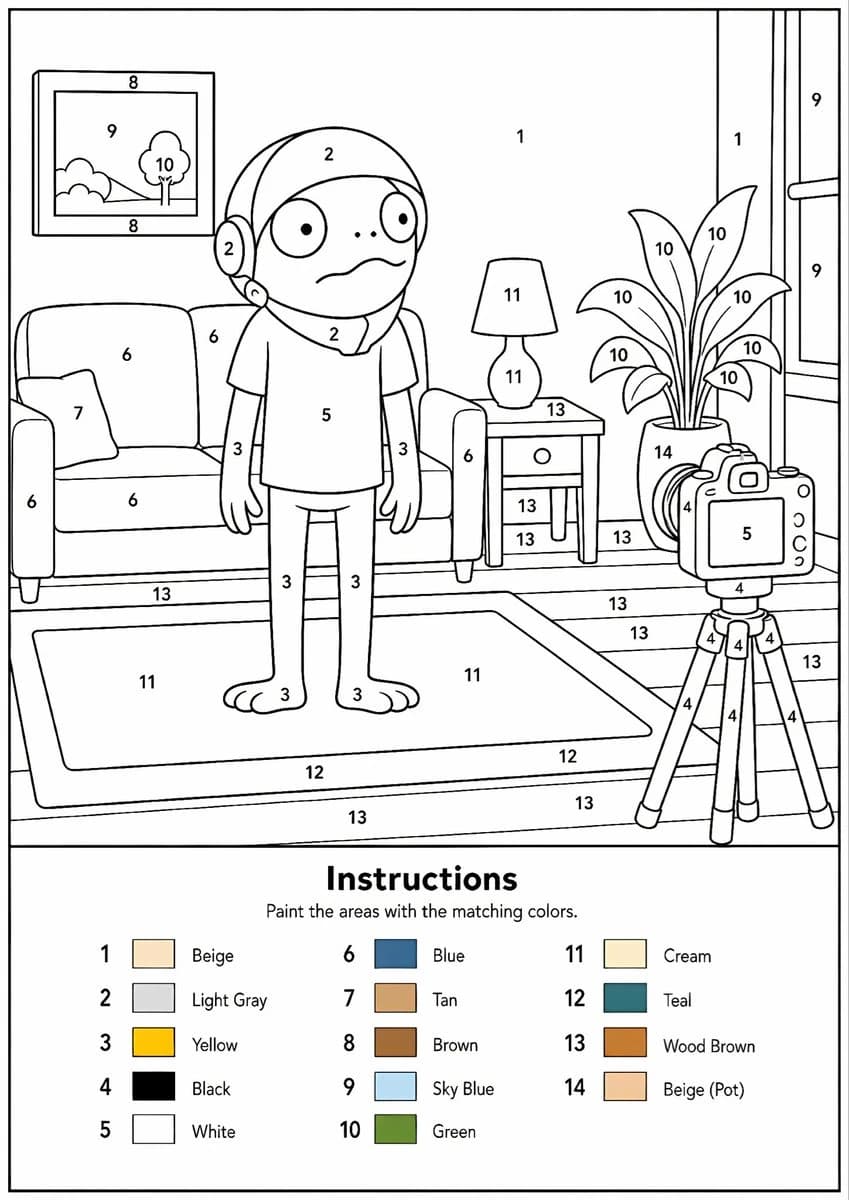
403 words🎨 This GPT Image 2 prompt turns any image into a printable paint-by-numbers page. For best results, use ChatGPT in Thinking mode. I think we should call it numberfying. The intellectuals can call it Colorbookification. 😂 I tried it with a few TurboToadToken images and the results are wild. 🐸💛 Create it. Print it. Paint it. For kids, adults, and anyone who wants an easy creative activity. Try it and post your results in the comments. Prompt below 👇 Create a professional high-resolution paint-by-numbers template from the provided image as a single PNG only. Use an A4 portrait ratio canvas at 300 DPI with a pure white background. The main artwork must be a clean black-and-white line drawing containing only black outlines, black numbers, and white unfilled paintable areas. Do not create a PDF, document, mockup, multi-page layout, or colored version. Do not use color, gray, shading, texture, gradients, transparency, or pre-filled areas in the main artwork. Analyze the original image and choose the number of colors adaptively based on image complexity, from 1 to a maximum of 14 colors. If the image has only 1–2 important colors, use only 1–2 colors; for simple images use 3–6 colors; for medium complexity use 7–10 colors; for complex, photographic, or highly detailed images use 11–14 colors. Do not force unnecessary colors. Assign each selected color one unique number and merge similar shades unless separation is essential for recognition. Convert the image into simplified, fully closed, easy-to-paint regions while preserving the recognizable composition, main objects, characters, text, logos, foreground, background, and key details. Every paintable white region must contain the correct black number, centered clearly inside the matching area, readable, upright, and not touching outlines. Large black or dark areas from the original must remain white paintable regions with the correct number, not filled black. Only tiny permanent black line details, such as mouth lines, nostrils, pupils, eyelashes, seams, or small decorative strokes, may remain unnumbered. At the bottom of the same PNG, add a neat legend section with the heading “Instructions”, the sentence “Paint the areas with the matching colors.”, and a list of every used number with a small color swatch and the English color name. Color swatches may appear only in the legend. Ensure the numbering exactly matches the legend, every paintable area is numbered, all regions are closed, and the final result is clean, professional, print-ready, and recognizable as the original image.
About this prompt
Printable Paint by Numbers is a ready-to-use comparison prompt for GPT Image 2 on Image 2. Copy the 403 words below, paste them into the Create form, and you will get a result close to the preview above. Tweak the Mockup, Comparison tag if you want to push it somewhere new.
Use it as a starting point, then adjust the subject, lighting, or composition to suit your idea. The credit cost stays the same whether you use it as written or customize it.
Use case
A strong starting point for Comparison
Start here when you want a comparison image inspired by Printable Paint by Numbers. The prompt already sets the look and composition; replace the subject, product, colors, or scene details to match your project.
Easy places to tweak
- Subject Swap in your person, product, place, or object without changing the overall composition.
- Look and mood Tune the lighting, palette, camera angle, or materials so the image fits your brand.
- Final format Set the aspect ratio, background, text, or layout notes before you generate.
More prompt paths to explore
Find more GPT Image 2 prompts with a similar style, use case, or subject.
How to use it
- Step 1
Copy the prompt
Hit the Copy button above to grab the full text.
- Step 2
Open Image 2 Create
Head to the Create form and paste it in.
- Step 3
Generate
Hit Generate. Your version lands in seconds.
Make it yours
Load the prompt into the Create form with one click, then start tweaking.