Vector Results

Text To Vector
AI Vector Generator
Turn text prompts into editable SVG vector art for logos, icons, stickers, and clean illustration systems.
Built for design assets.
Use this text to vector workflow when the final result needs to scale, be edited, or fit into a product and brand system.
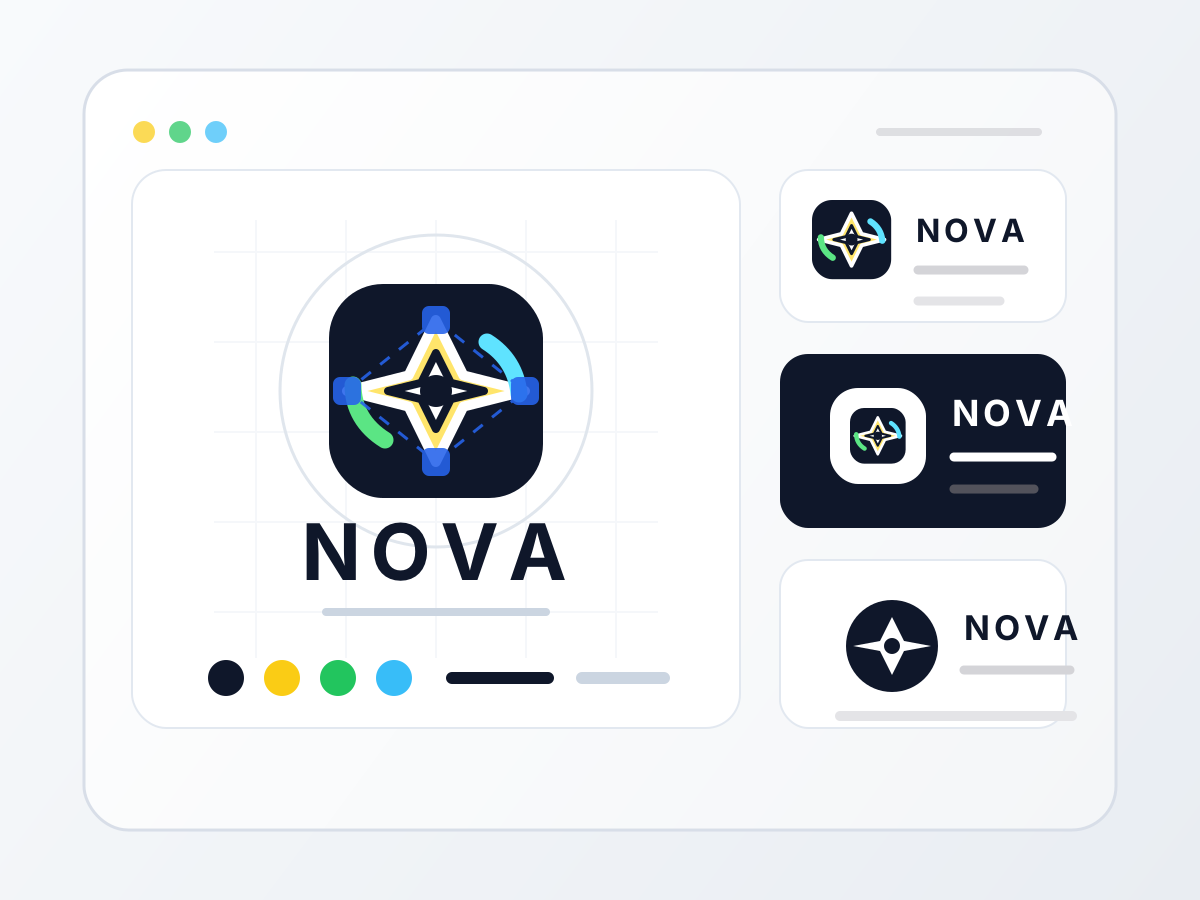
Logo directions
Explore mark concepts, mascot ideas, badges, and simple lockups before refining them manually.
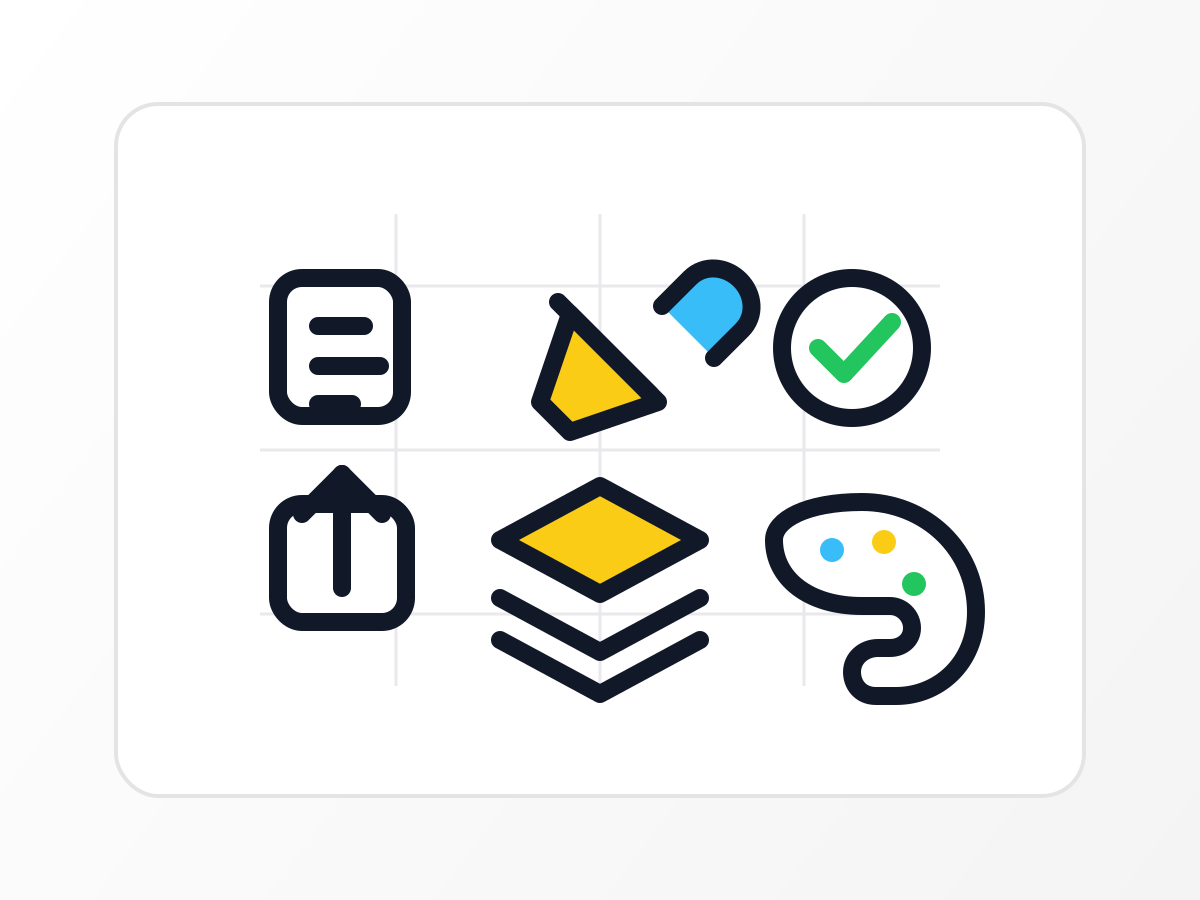
Icon systems
Draft matching icons for product features, app navigation, documentation, and onboarding screens.

Stickers
Create expressive but clean vector assets for social posts, packaging, landing pages, and community drops.

Illustrations
Produce clean vector illustrations for landing pages, editorial layouts, slide decks, and onboarding flows.
How Text To Vector works
Move from a design brief to a downloadable SVG in a few controlled steps.
Describe the vector asset
Write the logo, icon, sticker, or illustration you need, including shape language, palette, and final use.
Set the canvas and colors
Choose a preset or custom size, then add preferred colors and an optional background color when the asset needs brand direction.
Download editable SVG
Create the vector and save the SVG file for Figma, Illustrator, product UI, docs, or brand drafts.
Describe the vector asset
Write the logo, icon, sticker, or illustration you need, including shape language, palette, and final use.
Set the canvas and colors
Choose a preset or custom size, then add preferred colors and an optional background color when the asset needs brand direction.
Download editable SVG
Create the vector and save the SVG file for Figma, Illustrator, product UI, docs, or brand drafts.
Clean artwork you can keep editing.
Generate scalable SVG files with crisp shapes, useful layers, and design-system friendly structure.
SVG files for design tools
Download artwork that can move into Figma, Illustrator, or a codebase without flattening your idea into a raster image.
Crisp shapes and clean edges
Ideal for icons, logos, marks, badges, stickers, and simple illustrations that need to stay sharp at any size.
Guided color palettes
Guide the palette directly in your prompt, from two-color brand systems to soft editorial accents.
Reusable vector systems
Ask for reusable elements, simple motifs, and consistent parts when you need more than a one-off picture.
AI vector generator questions
Answers to your questions about Text To Vector.
AI Vector Generator
Turn text prompts into editable SVG vector art for logos, icons, stickers, and clean illustration systems.