AI Photo Restore
AI Photo Restore for old, faded, and damaged photos
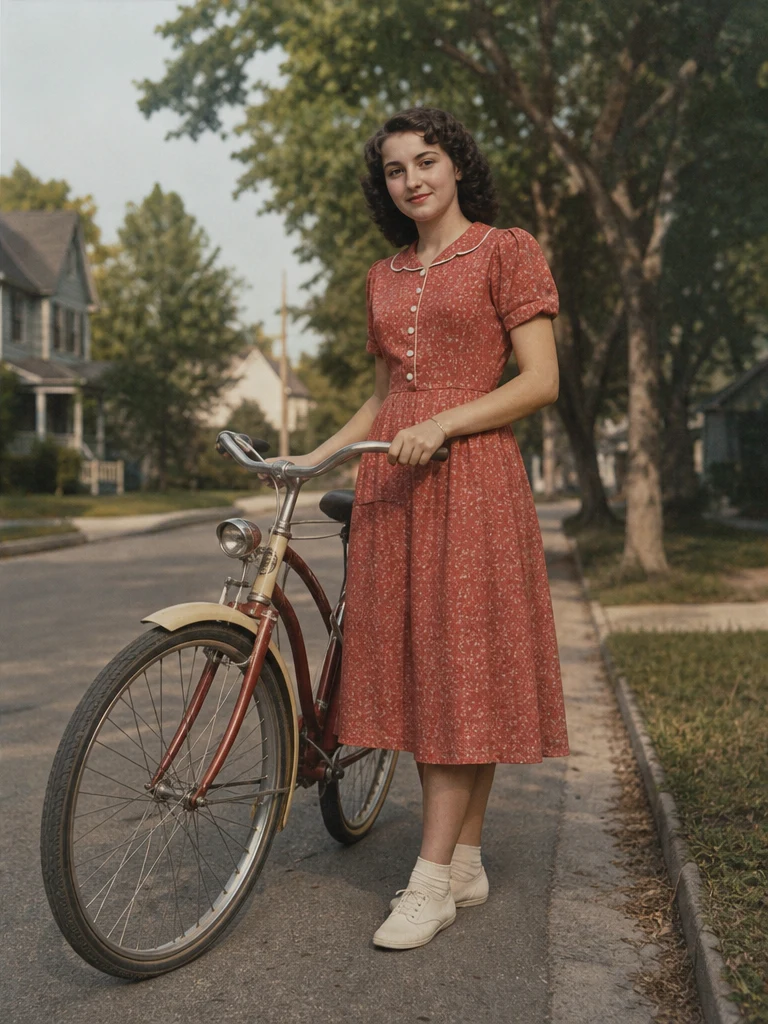
Upload a family photo, scan, or vintage portrait. Image 2 repairs damage, recovers detail, and lets you choose whether to keep the original look or add natural color.
Restored result
See what photo restore can clean up
Use these examples to judge the difference between faithful repair and optional colorization before uploading your own photo.
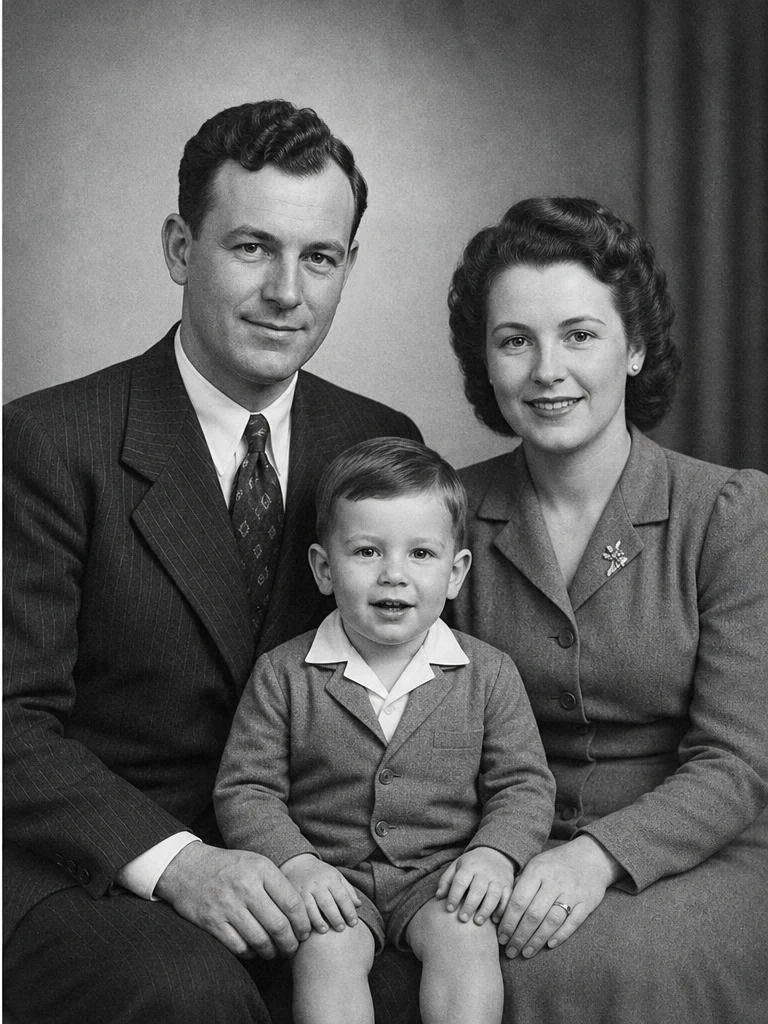
Black-and-white family portrait
Clean up scratches, dust, and low-contrast scans while keeping the original monochrome family archive look.
Restore a photo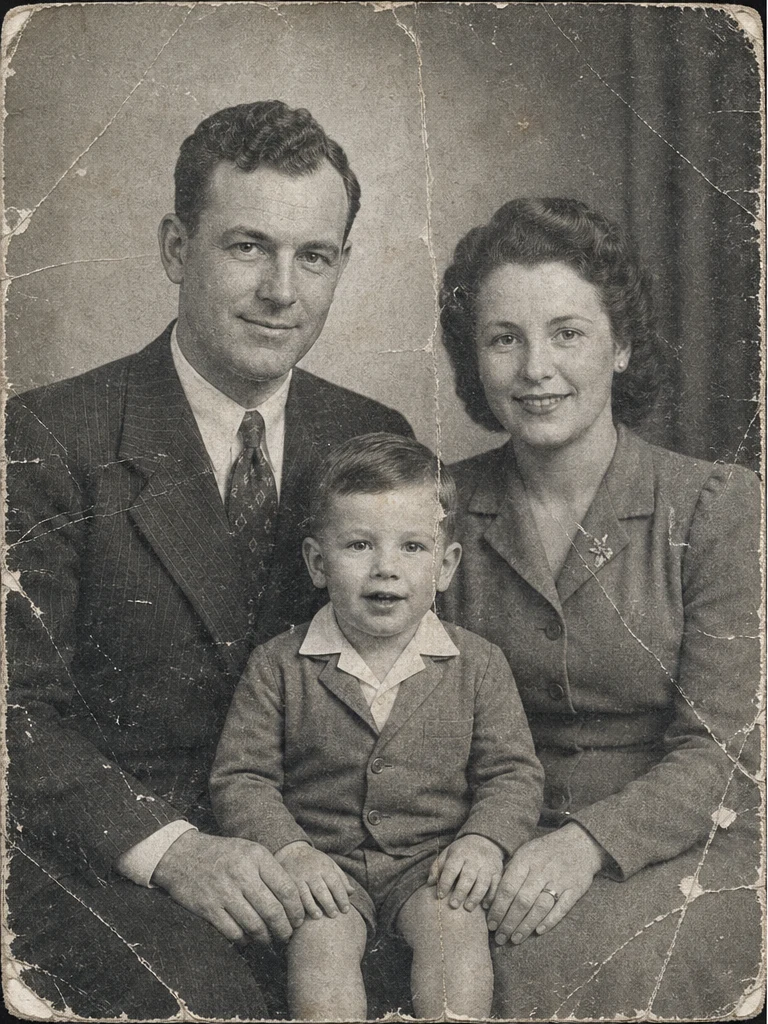
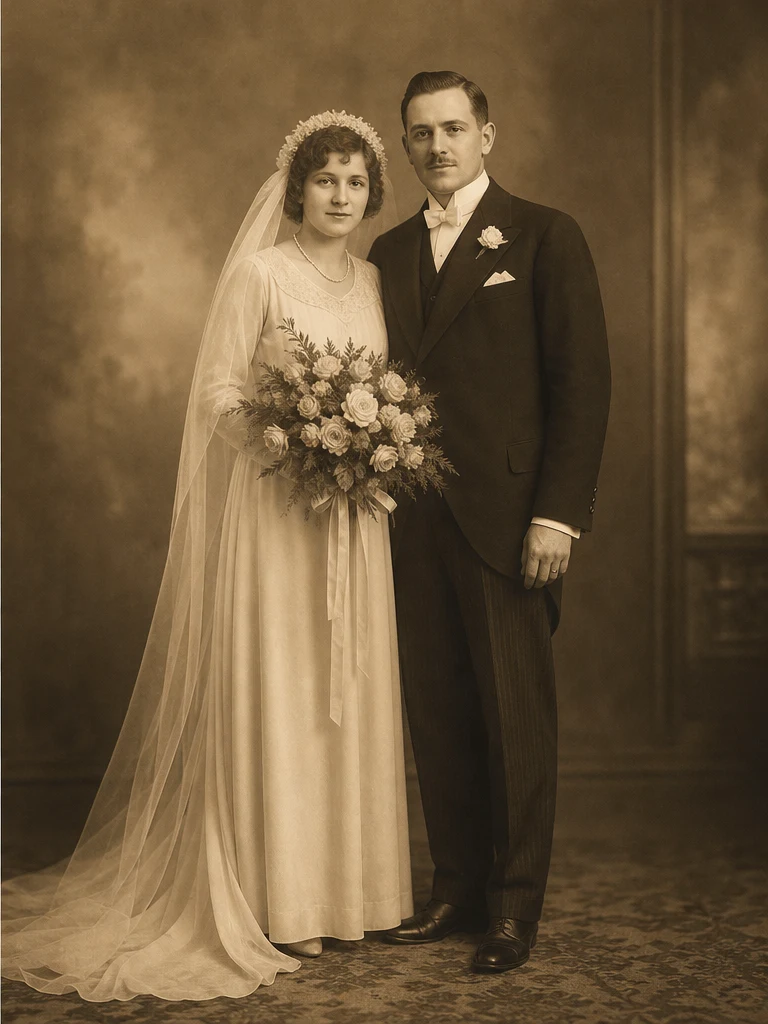
Faded sepia wedding print
Reduce fading, stains, and paper damage without stripping away the warm sepia tone of the original print.
Restore a photo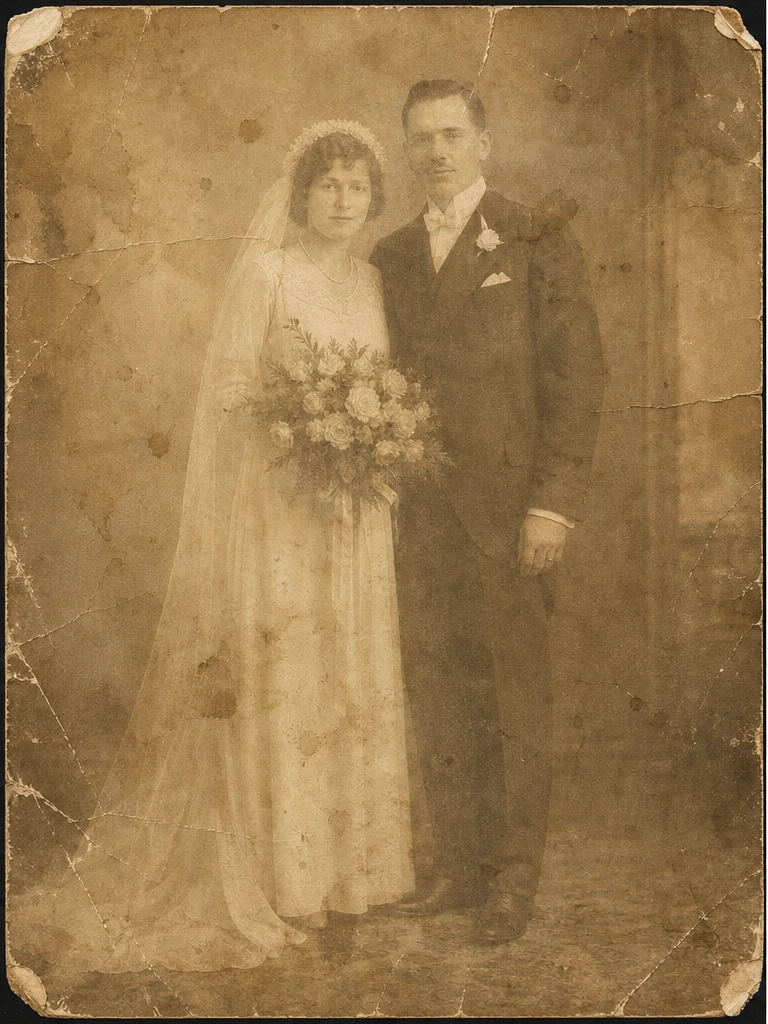
Restored and colorized portrait
Turn on colorize when you want a natural color version after the restoration is complete.
Restore a photo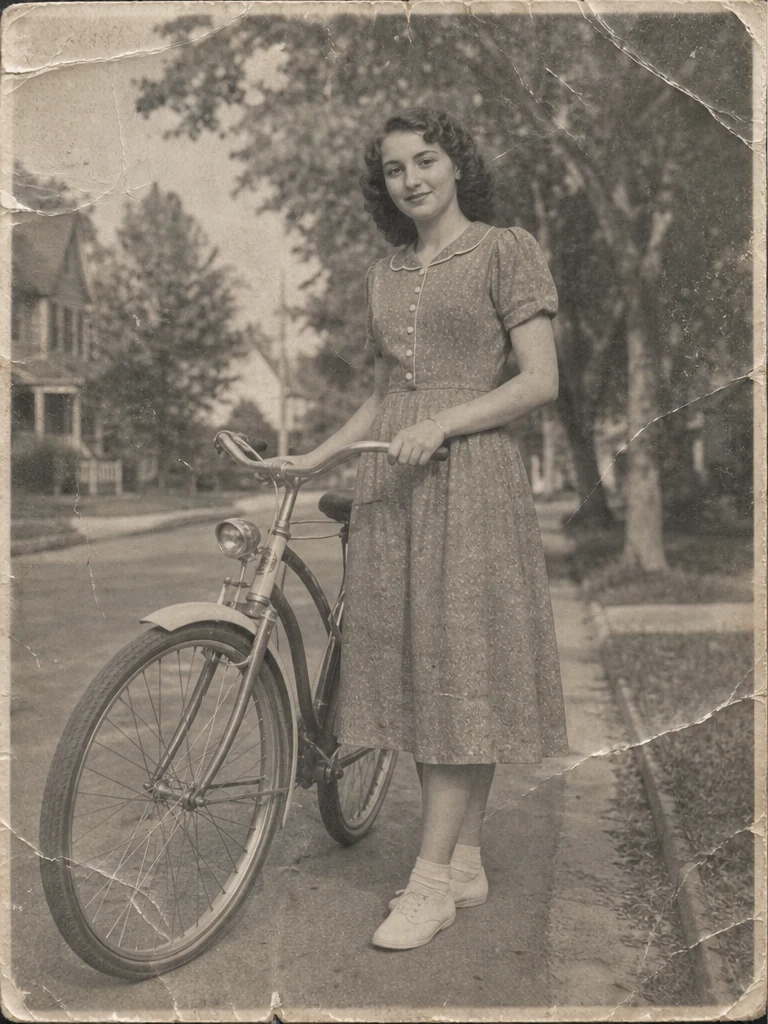
Built for the real problems in old photos
Photo restoration is not just sharpening. The workflow is tuned for damage, age, and identity-sensitive images.
Damage cleanup
Reduce scratches, dust, stains, folds, tears, JPEG artifacts, and scan noise without flattening the photo.
Faces stay recognizable
Recover clarity while preserving facial features, age, expression, clothing, and the original moment.
Color is optional
Keep black-and-white or sepia photos faithful, or enable colorize when you want a natural color version.
How AI photo restore works
A simple restoration flow for family archives, scanned prints, damaged portraits, and vintage photo cleanup.
Upload the best scan you have
Use a clear photo or scan. Higher input quality helps the model recover smaller details.
Choose whether to colorize
Leave colorize off for faithful repair, or turn it on for a natural color restoration.
Compare and download
Review the before-and-after result, favorite it, or download the restored photo.
Upload the best scan you have
Use a clear photo or scan. Higher input quality helps the model recover smaller details.
Choose whether to colorize
Leave colorize off for faithful repair, or turn it on for a natural color restoration.
Compare and download
Review the before-and-after result, favorite it, or download the restored photo.
Restoration controls without busywork
The default settings cover the common case, while notes give advanced users enough control.
Faithful by default
Image 2 is tuned to preserve composition, identity, clothing, and the era of the source photo.
Natural colorization
Colorize mode adds plausible skin tones, clothing colors, and scene color without changing the photo into a new style.
Ready for archives
Restored photos stay in My Images, so you can download, favorite, and find them again later.
Frequently asked questions
Answers to your questions about AI Photo Restore.
Restore an old photo with Image 2
Repair damage first. Add color only when it helps the memory feel more alive.