Real transparent layers
Receive multiple RGBA PNG files rather than one subject cutout or another flattened image.
Separate a flat poster into reusable PNG layers, inspect each result, and download the full layer ZIP for your design workflow.
A clean handoff, not another editor
Generate the layer stack, inspect each transparent PNG, and take the assets into the design tool you already use.
Keep the composition you like while separating its artwork for faster revisions, campaign variants, and design handoff.
Receive multiple RGBA PNG files rather than one subject cutout or another flattened image.
The model reconstructs hidden regions so foreground elements can be hidden without leaving an obvious hole.
Preview every layer in the browser and download individual PNG assets for Photoshop, Canva, or motion work.
Layer separation is most useful when the image is already close and you need control over its parts.
Move a product, remove a badge, or reuse a hero subject across multiple ad sizes without rebuilding the poster.
Separate a poster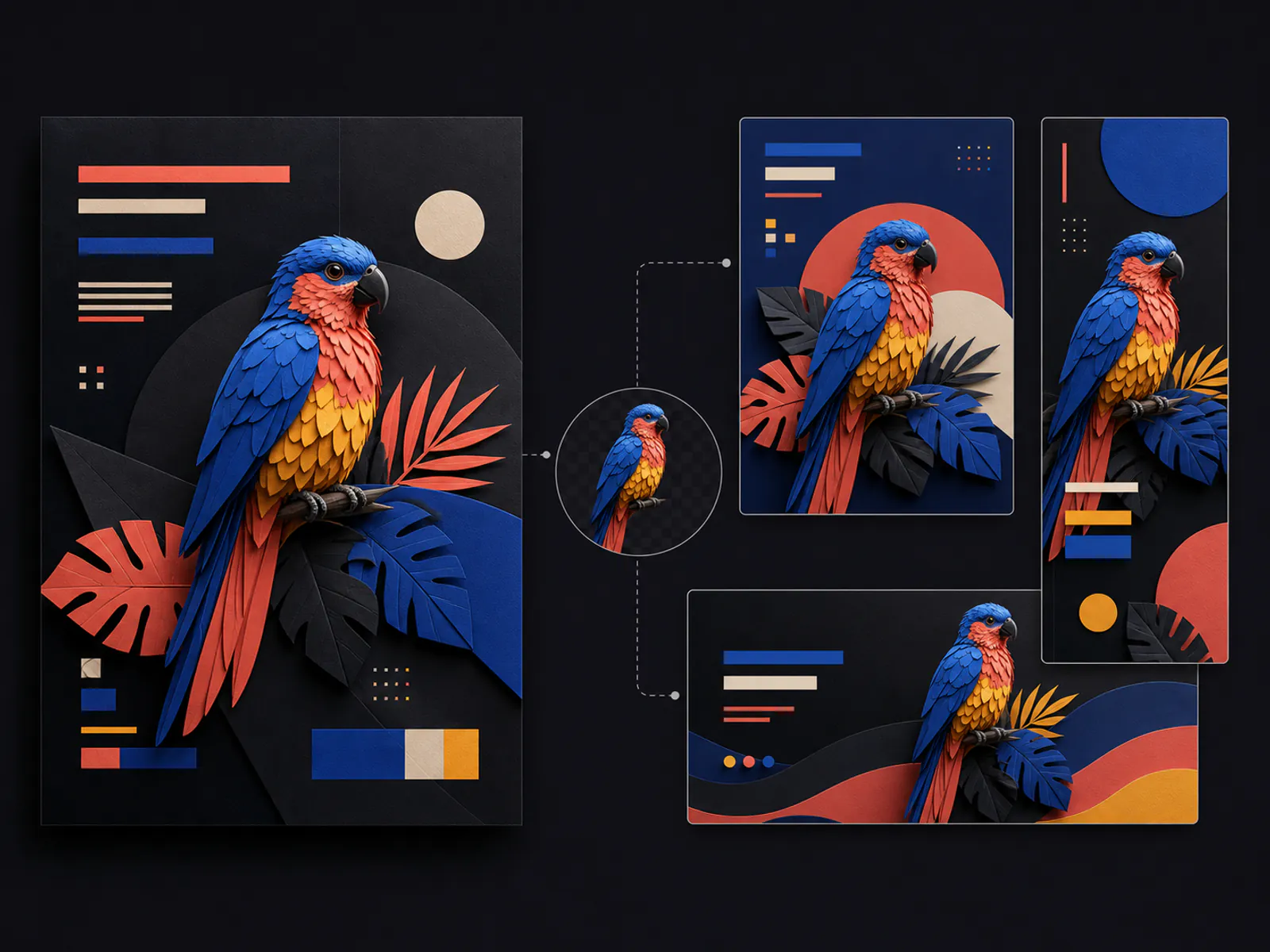
Give designers transparent source assets instead of asking them to trace elements from a compressed export.
Separate a poster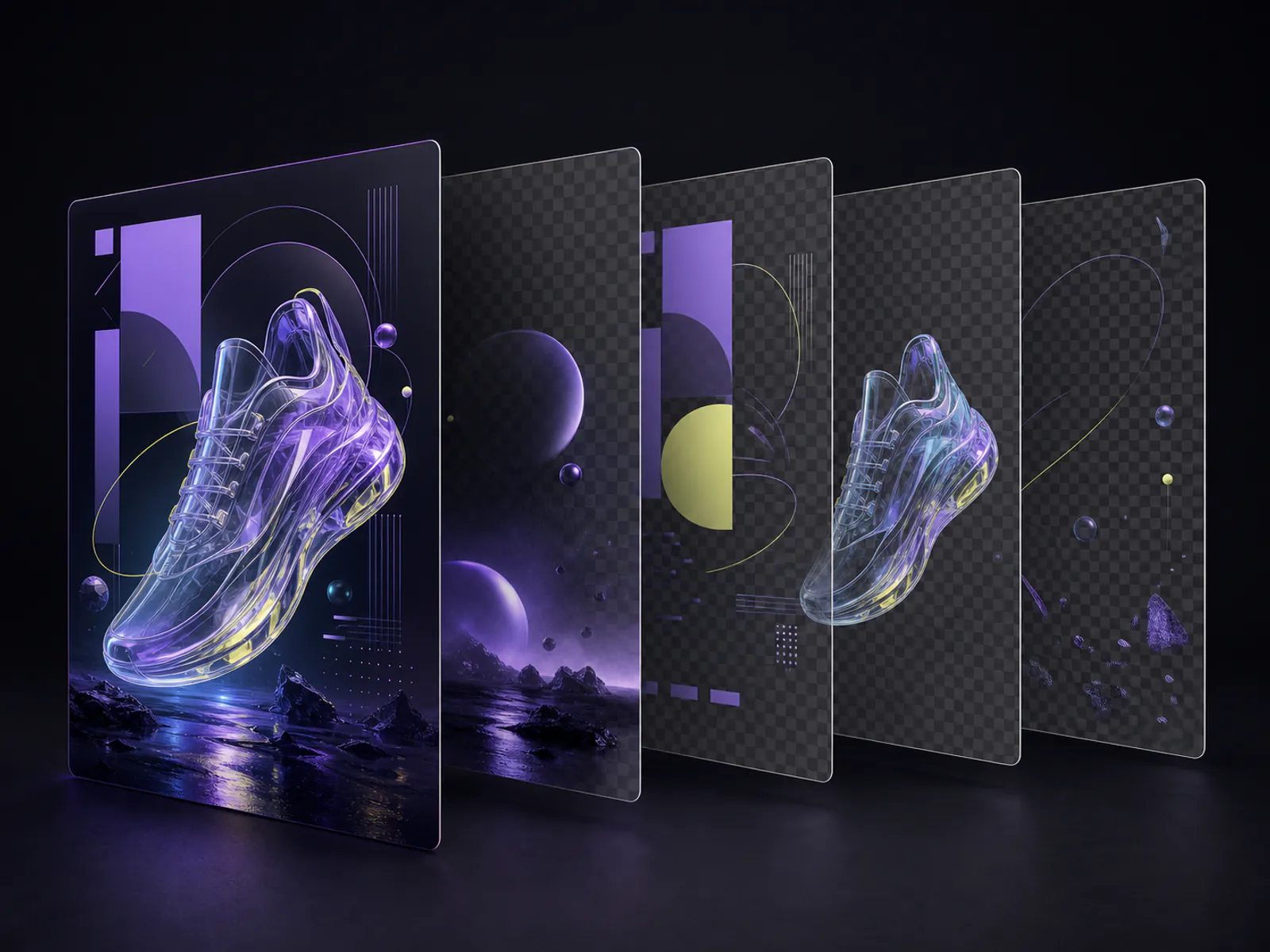
Take foreground, middle, and background artwork into a timeline for simple parallax and reveal animations.
Separate a poster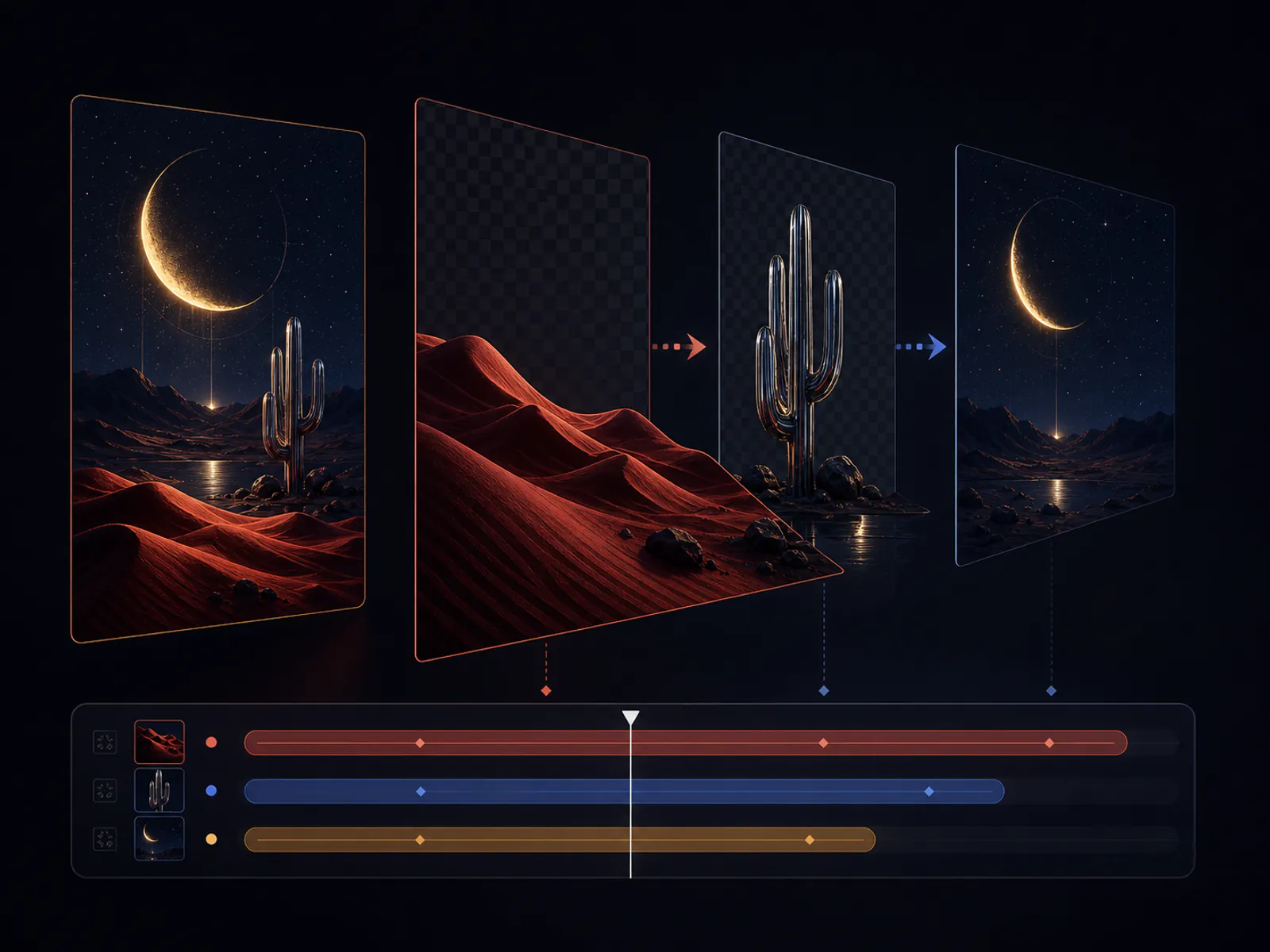
A focused workflow that stops at a clean, reusable handoff.
Use a clear JPG, PNG, or WebP with distinct subjects, text blocks, products, and background artwork.
Start with four layers for simple layouts, or choose six or eight for denser compositions.
Toggle layers to verify the result, then download an individual PNG or the complete layer ZIP.
Use a clear JPG, PNG, or WebP with distinct subjects, text blocks, products, and background artwork.
Start with four layers for simple layouts, or choose six or eight for denser compositions.
Toggle layers to verify the result, then download an individual PNG or the complete layer ZIP.
Answers to your questions about Poster Layer Separator.
Upload one finished design and turn it into transparent assets you can actually reuse.