Prompt
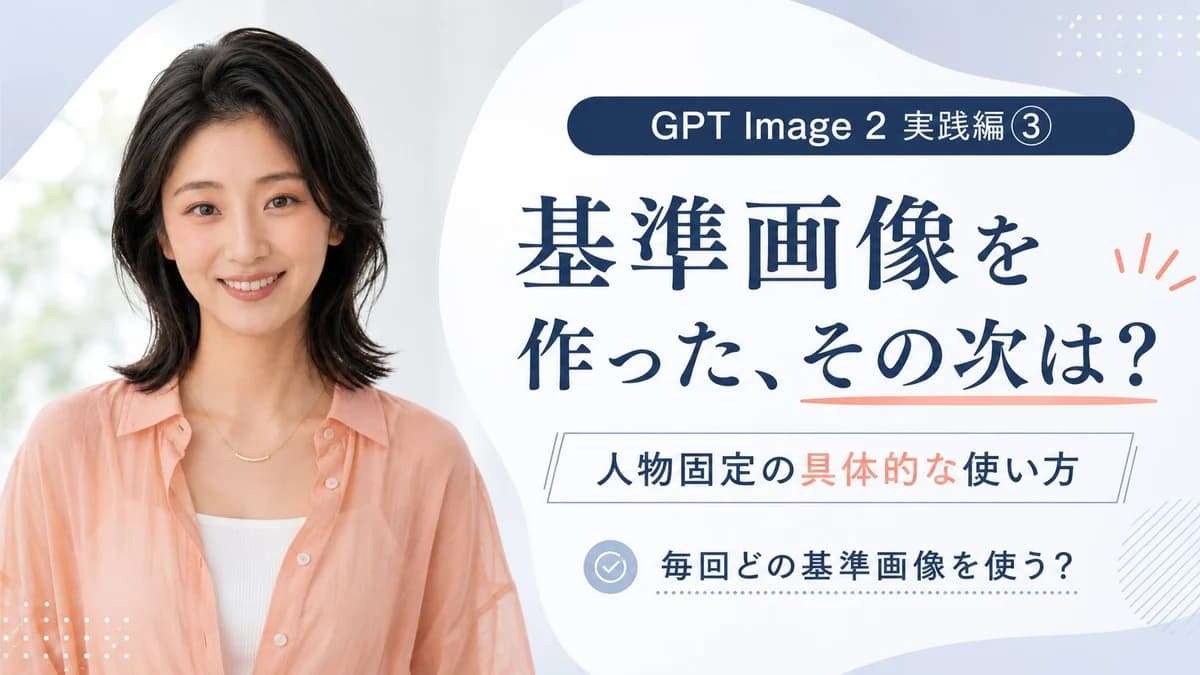
341 wordsGoal: Create a clean Japanese promotional thumbnail/banner for a GPT Image 2 tutorial about using reference images to keep the same person consistent. Canvas: 16:9 horizontal banner, 1200×675 style, soft pale blue and white background with large organic blob shapes. Use a polished educational course-thumbnail aesthetic, airy spacing, high readability, no harsh shadows. Layout: Split composition with a realistic portrait on the left occupying about 40% of the canvas, and a text-heavy information panel on the right occupying about 60%. The right side has a large white rounded organic shape as the main text area. Add small decorative dotted grids in the top-right and bottom-left corners, a light diagonal hatch pattern near the lower-right edge, and coral accent marks beside the headline. Subject details: On the left, show one smiling Japanese woman in her late 20s to early 30s, photographed from the waist/chest up, facing the camera. She has shoulder-length softly layered black hair, natural makeup, warm friendly expression, and wears a peach sheer button-up shirt over a white ribbed camisole with a delicate gold necklace. Background behind her is bright, soft-focus, and slightly green-white like daylight through a window. Text content: Include exactly 4 text blocks on the right: 1) a dark navy rounded pill at the top reading 「GPT Image 2 実践編 ③」; 2) a large navy Japanese headline reading 「基準画像を\n作った、その次は?」 with a coral underline under the final phrase; 3) a thin outlined rectangle subtitle reading 「人物固定の具体的な使い方」 with 「具体的な」 highlighted in coral; 4) a bottom checklist row with a pale blue circular check icon followed by 「毎回どの基準画像を使う?」. Keep all Japanese text crisp, centered within its area, and use elegant Mincho-style serif for the main headline with modern sans-serif for smaller labels. Color palette: Deep navy text, pale powder blue background, white panels, peach/coral accents matching the woman's shirt, and light blue-gray icon details. Constraints: Use exactly one person, exactly four text blocks, exactly one check icon, and exactly three main decorative accent types: dotted grids, coral rays/underline, and diagonal hatching. Avoid extra logos, watermarks, English translations, or additional text.
About this prompt
GPT Image 2 Reference Tutorial Banner is a ready-to-use infographic prompt for GPT Image 2 on Image 2. Copy the 341 words below, paste them into the Create form, and you will get a result close to the preview above. Tweak the Social Media, Infographic, Storyboard tag if you want to push it somewhere new.
Use it as a starting point, then adjust the subject, lighting, or composition to suit your idea. The credit cost stays the same whether you use it as written or customize it.
Use case
A strong starting point for Infographic
Start here when you want a infographic image inspired by GPT Image 2 Reference Tutorial Banner. The prompt already sets the look and composition; replace the subject, product, colors, or scene details to match your project.
Easy places to tweak
- Subject Swap in your person, product, place, or object without changing the overall composition.
- Look and mood Tune the lighting, palette, camera angle, or materials so the image fits your brand.
- Final format Set the aspect ratio, background, text, or layout notes before you generate.
More prompt paths to explore
Find more GPT Image 2 prompts with a similar style, use case, or subject.
How to use it
- Step 1
Copy the prompt
Hit the Copy button above to grab the full text.
- Step 2
Open Image 2 Create
Head to the Create form and paste it in.
- Step 3
Generate
Hit Generate. Your version lands in seconds.
Make it yours
Load the prompt into the Create form with one click, then start tweaking.