Prompt
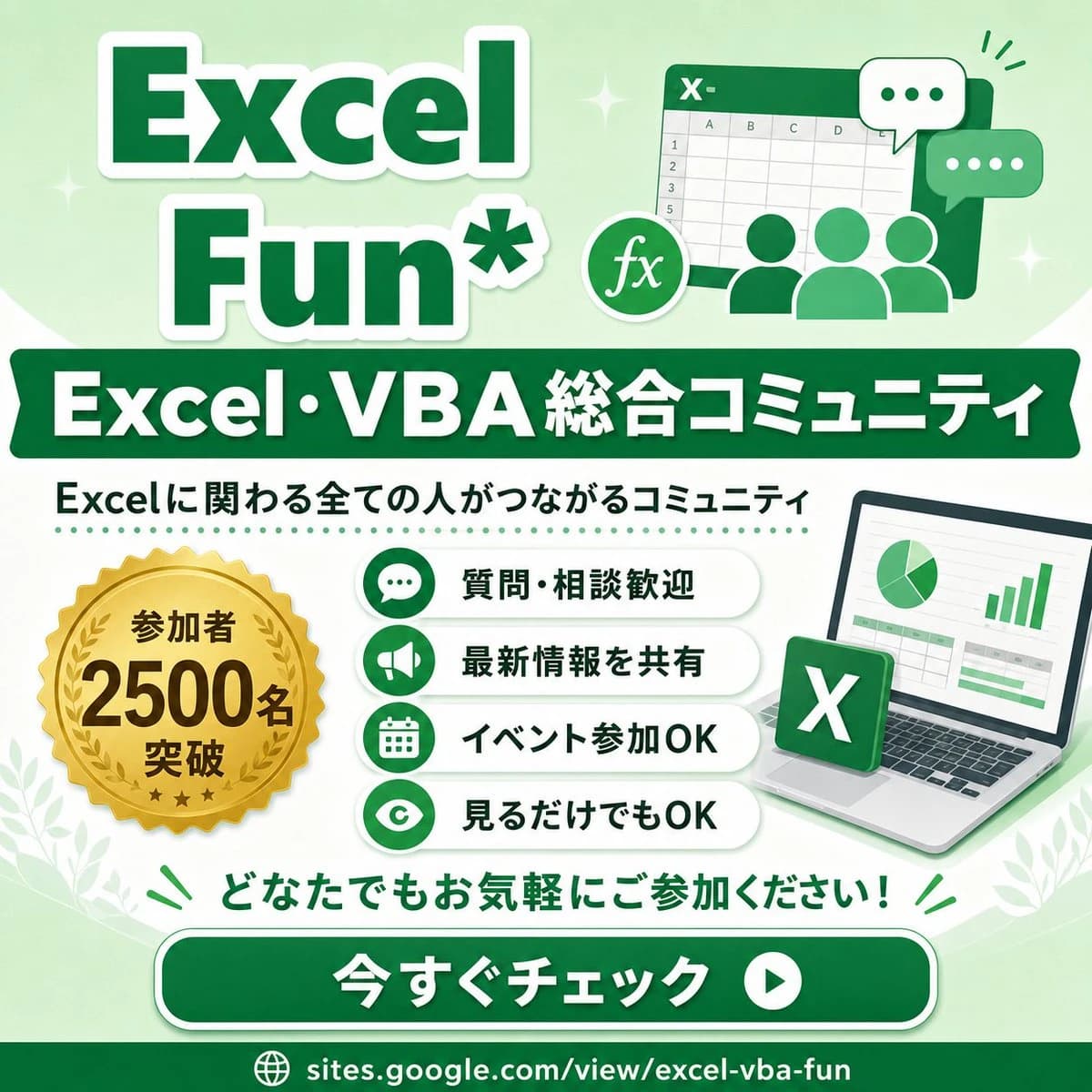
437 wordsGoal: Create a square promotional infographic for an Excel and VBA online community, using a friendly green-and-white corporate style with Japanese typography.
Canvas: 1:1 square social media image, 768 x 768 px feel, pale mint green gradient background with soft white curves, subtle sparkles, small leaf decorations in the lower corners, and a clean high-contrast layout.
Layout: Large title block at the top left, illustration block at the top right, wide dark-green banner across the upper middle, main information area in the center, call-to-action button near the bottom, and URL footer at the very bottom.
Text content: Top title reads “{argument name="main title" default="Excel Fun*"}” in oversized bold dark green letters with thick white outline and soft drop shadow. Middle ribbon banner reads “{argument name="community headline" default="Excel・VBA 総合コミュニティ"}” in bold white text. Under it, add the subtitle “{argument name="community description" default="Excelに関わる全ての人がつながるコミュニティ"}” in dark green. The gold medal badge says “{argument name="member badge text" default="参加者 2500名 突破"}”. Bottom encouragement line says “どなたでもお気軽にご参加ください!” in green. Large rounded CTA button says “{argument name="button text" default="今すぐチェック"}” in bold white, with a white circular play icon on the right. Footer URL reads “sites.google.com/view/excel-vba-fun” with a small globe icon.
Subject details: Top-right illustration shows a stylized Excel spreadsheet window with an “X-” mark in the header, visible grid cells and column letters, three simplified green user silhouettes in front, a round “fx” formula icon, and exactly 2 chat bubbles: one white bubble with three green dots and one green bubble with three white dots. Center-left contains exactly 1 gold seal medal with serrated edge, laurel wreath, three small stars, and bold black-brown lettering. Center-right contains exactly 1 laptop angled slightly right, showing a spreadsheet dashboard with exactly 1 pie chart and exactly 1 green bar chart; place exactly 1 floating green Excel app tile with a white X in front of the laptop.
Benefit list: Create exactly 4 horizontal rounded white pill cards stacked vertically in the center. Each card has a green circular icon on the left and bold dark green Japanese text on the right. The 4 cards are: 1) chat bubble icon, “質問・相談歓迎”; 2) megaphone icon, “最新情報を共有”; 3) calendar icon, “イベント参加OK”; 4) eye icon, “見るだけでもOK”. Add a dotted green divider line above the benefit list.
Visual style: Bright vector illustration, glossy social-banner design, rounded shapes, thick outlines, soft shadows, clean Japanese sans-serif typography, mostly emerald green, mint green, white, and gold. Keep everything crisp, cheerful, accessible, and community-oriented.
Constraints: Use exactly the counted elements described above; do not add extra benefit cards, extra badges, extra chat bubbles, QR codes, watermarks, or unrelated logos. Preserve the Japanese text exactly where specified.About this prompt
Excel VBA Community Promo Banner is a ready-to-use infographic prompt for GPT Image 2 on Image 2. Copy the 437 words below, paste them into the Create form, and you will get a result close to the preview above. Tweak the Social Media, Design, Infographic tag if you want to push it somewhere new.
Use it as a starting point, then adjust the subject, lighting, or composition to suit your idea. The credit cost stays the same whether you use it as written or customize it.
Use case
A strong starting point for Infographic
Start here when you want a infographic image inspired by Excel VBA Community Promo Banner. The prompt already sets the look and composition; replace the subject, product, colors, or scene details to match your project.
Easy places to tweak
- Subject Swap in your person, product, place, or object without changing the overall composition.
- Look and mood Tune the lighting, palette, camera angle, or materials so the image fits your brand.
- Final format Set the aspect ratio, background, text, or layout notes before you generate.
More prompt paths to explore
Find more GPT Image 2 prompts with a similar style, use case, or subject.
How to use it
- Step 1
Copy the prompt
Hit the Copy button above to grab the full text.
- Step 2
Open Image 2 Create
Head to the Create form and paste it in.
- Step 3
Generate
Hit Generate. Your version lands in seconds.
Make it yours
Load the prompt into the Create form with one click, then start tweaking.