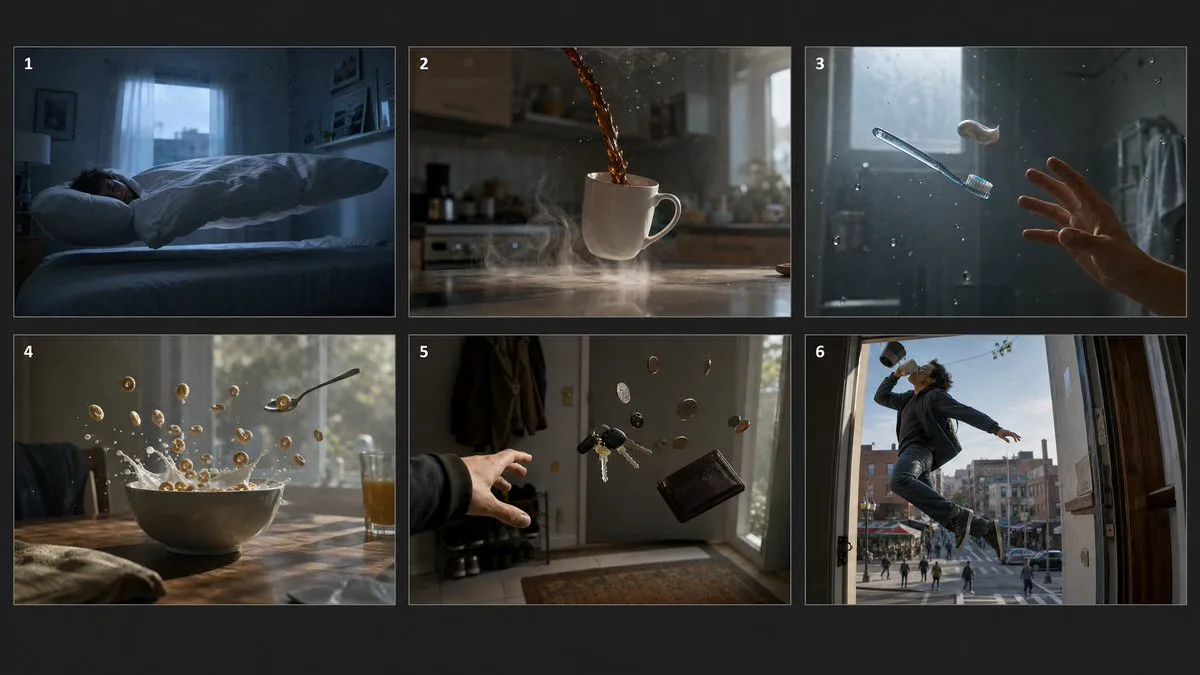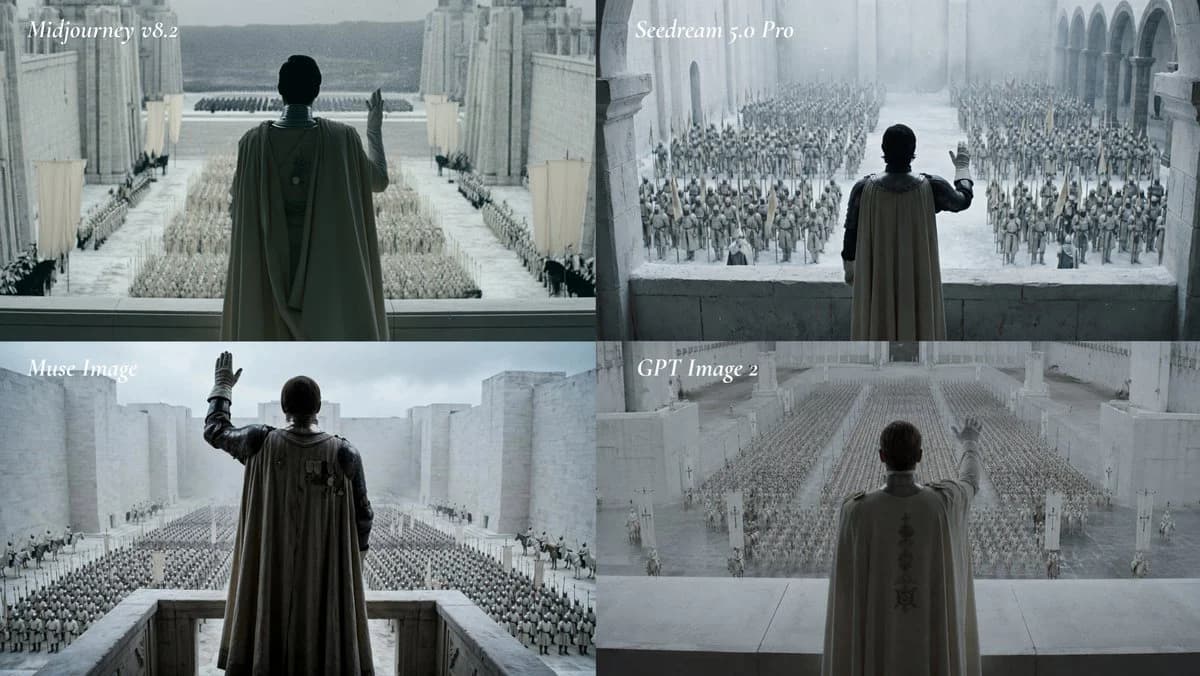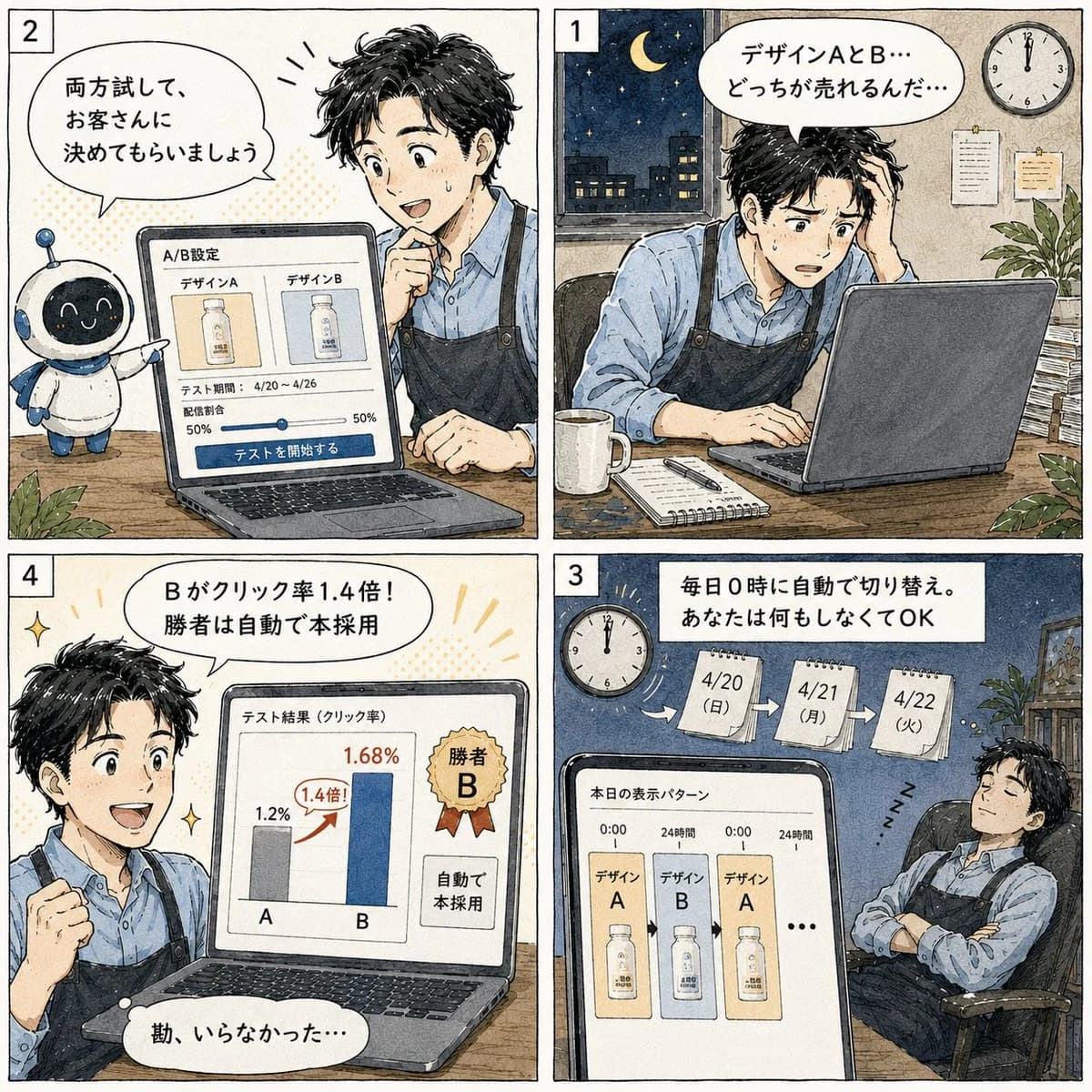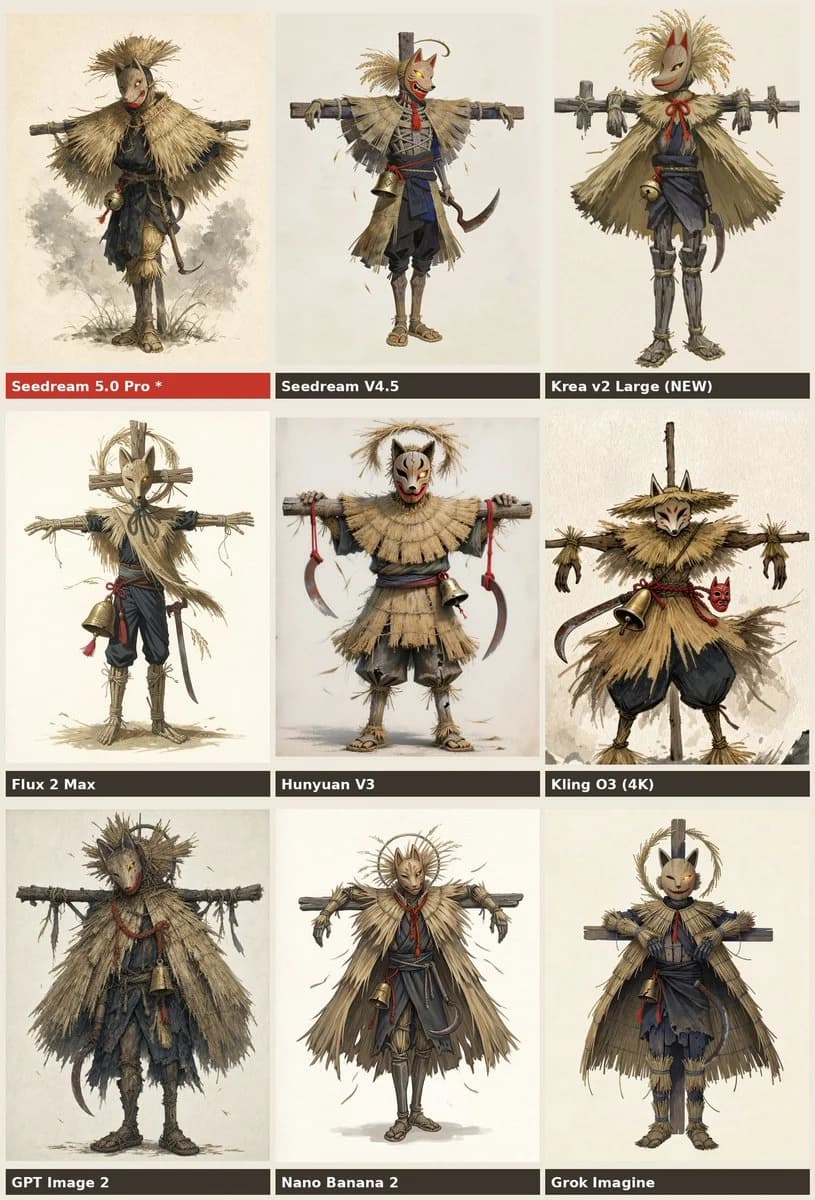
Prompt
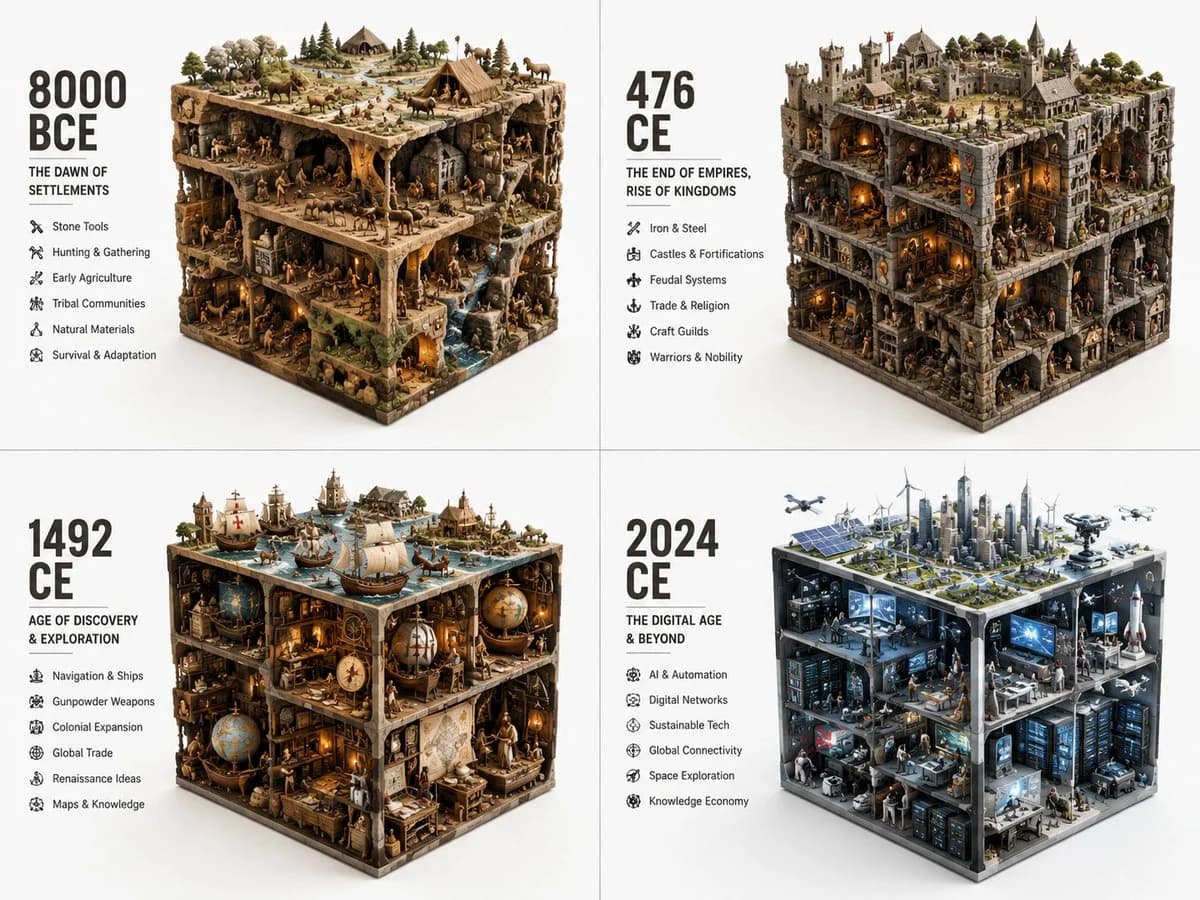
144 wordsI love these cube prompts for visualizing different eras. Pretty short but GPT Image 2 figures it out 2x2 grid, do this for different years of vastly different eras: ERA_TO_CUBE_SOLVER INPUT ::= [TOPIC], [ERA] STEP_1 :: infer era identity - time period or stage - dominant materials - key tools or artifacts - social/technical/cultural context - built environment or natural environment - representative agents or figures if relevant STEP_2 :: compress into cube - large objects define cuboid edges - medium objects build internal scenes - small objects fill gaps - top, side, and front faces remain visible - everything stays inside a strict rectangular volume STEP_3 :: create module text - large era label - short subtitle - compact bullet list - no fixed facts unless supplied STEP_4 :: repeat across eras - preserve identical visual grammar - increase or transform complexity chronologically
About this prompt
Era Cube Visualizer Grid is a ready-to-use comparison prompt for GPT Image 2 on Image 2. Copy the 144 words below, paste them into the Create form, and you will get a result close to the preview above. Tweak the Comparison, Product, Grid tag if you want to push it somewhere new.
Use it as a starting point and keep iterating: change the subject, lighting, or composition until it looks right. The credit cost stays the same whether you run it as-is or remix it.
Use case
A strong starting point for Comparison
Start here when you want a comparison image in the same direction as Era Cube Visualizer Grid. The prompt already sets the look and structure; swap in your own subject, product, colors, or scene details for the brief you have in mind.
Easy places to tweak
- Subject Swap in your person, product, place, or object without changing the overall composition.
- Look and mood Tune the lighting, palette, camera angle, or materials so the image fits your brand.
- Final format Set the aspect ratio, background, text, or layout notes before you generate.
More prompt paths to explore
Find more GPT Image 2 prompts with a similar style, use case, or subject.
How to use it
- Step 1
Copy the prompt
Hit the Copy button above to grab the full text.
- Step 2
Open Image 2 Create
Head to the Create form and paste it in.
- Step 3
Generate
Hit Generate. Your version lands in seconds.
Make it yours
Load the prompt into the Create form with one click, then start tweaking.