Prompt
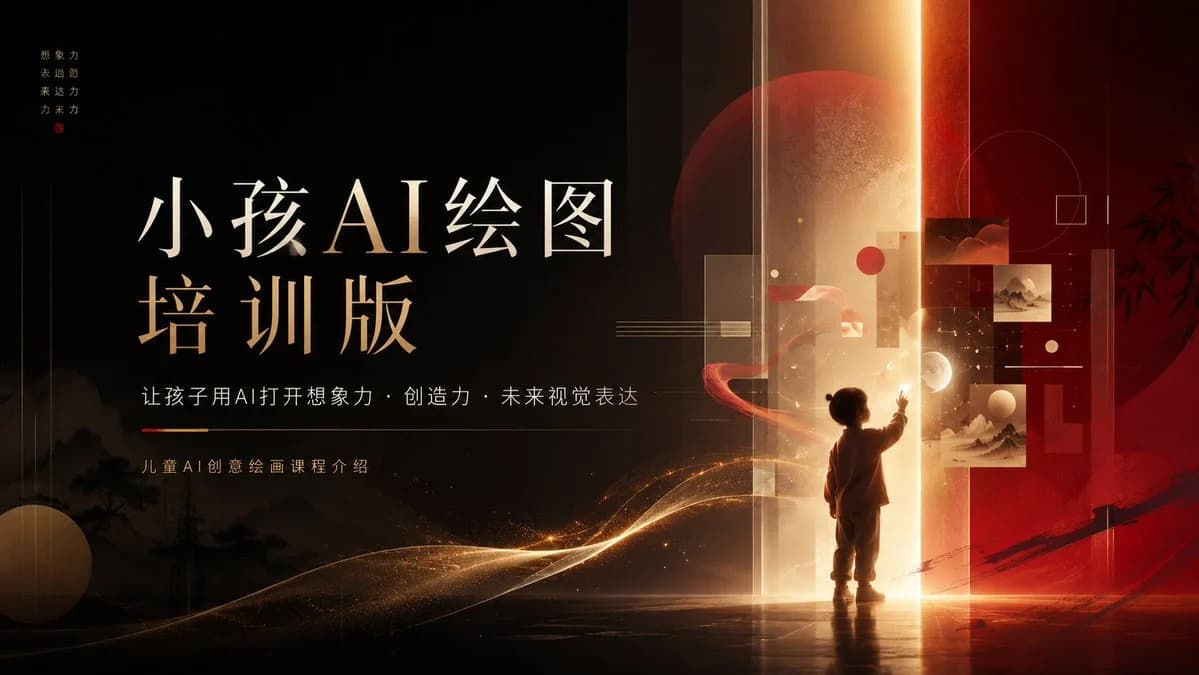
435 wordsGoal: Create a cinematic 16:9 PowerPoint cover slide for a children’s AI art course, blending premium Chinese aesthetics, futuristic AI education, and warm imaginative storytelling.
Canvas: Wide presentation slide, 1366×768 or 16:9 ratio. Dark black-to-burgundy background with a strong vertical glowing portal slightly right of center. Use a luxury black, deep red, ivory, and gold palette with soft haze, dust particles, and luminous light trails.
Layout: Left side is the typography area; right side is the fantasy visual scene. Place a large two-line Chinese title on the left: first line “小孩AI绘图”, second line “培训版”, with elegant Song/Ming-style serif Chinese typography, ivory on top and warm gold accents below. Under the title, add one subtitle line: “让孩子用AI打开想象力 · 创造力 · 未来视觉表达”. Below that, add a small caption: “儿童AI创意绘画课程介绍”. In the top-left corner, include a tiny vertical four-line motto reading “想象力 / 表达力 / 未来力 / 创造力” with a small red seal-like square beneath it.
Subject details: On the right, show one small child silhouette standing at the base of the glowing portal, facing away from the viewer and reaching one hand toward floating visual panels. The child should look about 5–7 years old, short, with a rounded head silhouette and simple clothing, rendered as a warm backlit figure. Around the child, include exactly 5 floating art panels: 2 small dark red abstract landscape panels near the upper right, 2 pale Chinese ink landscape panels stacked near the middle-right, and 1 small translucent rectangular panel near the portal. Add exactly 4 main geometric accents: 1 large translucent red moon/circle behind the portal, 1 thin outlined circle in the upper right, 1 small outlined square near it, and 1 beige sphere near the lower left. Add a red ribbon-like orbit around the child and golden wave particles sweeping from lower left toward the portal.
Visual style: High-end course-presentation cover, cinematic lighting, subtle Chinese ink landscape silhouettes along the bottom left, faint bamboo silhouette on the far right, layered transparent rectangles, thin technical lines, warm golden vertical beam, glossy floor reflection, dramatic contrast, refined editorial composition, premium education brand aesthetic.
Customizable text: Main title should read {argument name="main title" default="小孩AI绘图\n培训版"}. Subtitle should read {argument name="subtitle" default="让孩子用AI打开想象力 · 创造力 · 未来视觉表达"}. Small course label should read {argument name="course label" default="儿童AI创意绘画课程介绍"}. Motto should read {argument name="vertical motto" default="想象力\n表达力\n未来力\n创造力"}. Overall theme should remain {argument name="course theme" default="children’s AI creative drawing course"}.
Constraints: Keep the composition uncluttered and presentation-ready. Do not add extra people, extra title text, logos, watermarks, or UI elements. Preserve the luxurious black-red-gold palette and the exact counts of 1 child, 5 floating art panels, and 4 main geometric accents.About this prompt
Children’s AI Art Course PPT Cover is a ready-to-use infographic prompt for GPT Image 2 on Image 2. Copy the 435 words below, paste them into the Create form, and you will get a result close to the preview above. Tweak the Infographic, Storyboard, Product tag if you want to push it somewhere new.
Use it as a starting point, then adjust the subject, lighting, or composition to suit your idea. The credit cost stays the same whether you use it as written or customize it.
Use case
A strong starting point for Infographic
Start here when you want a infographic image inspired by Children’s AI Art Course PPT Cover. The prompt already sets the look and composition; replace the subject, product, colors, or scene details to match your project.
Easy places to tweak
- Subject Swap in your person, product, place, or object without changing the overall composition.
- Look and mood Tune the lighting, palette, camera angle, or materials so the image fits your brand.
- Final format Set the aspect ratio, background, text, or layout notes before you generate.
More prompt paths to explore
Find more GPT Image 2 prompts with a similar style, use case, or subject.
How to use it
- Step 1
Copy the prompt
Hit the Copy button above to grab the full text.
- Step 2
Open Image 2 Create
Head to the Create form and paste it in.
- Step 3
Generate
Hit Generate. Your version lands in seconds.
Make it yours
Load the prompt into the Create form with one click, then start tweaking.