Prompt
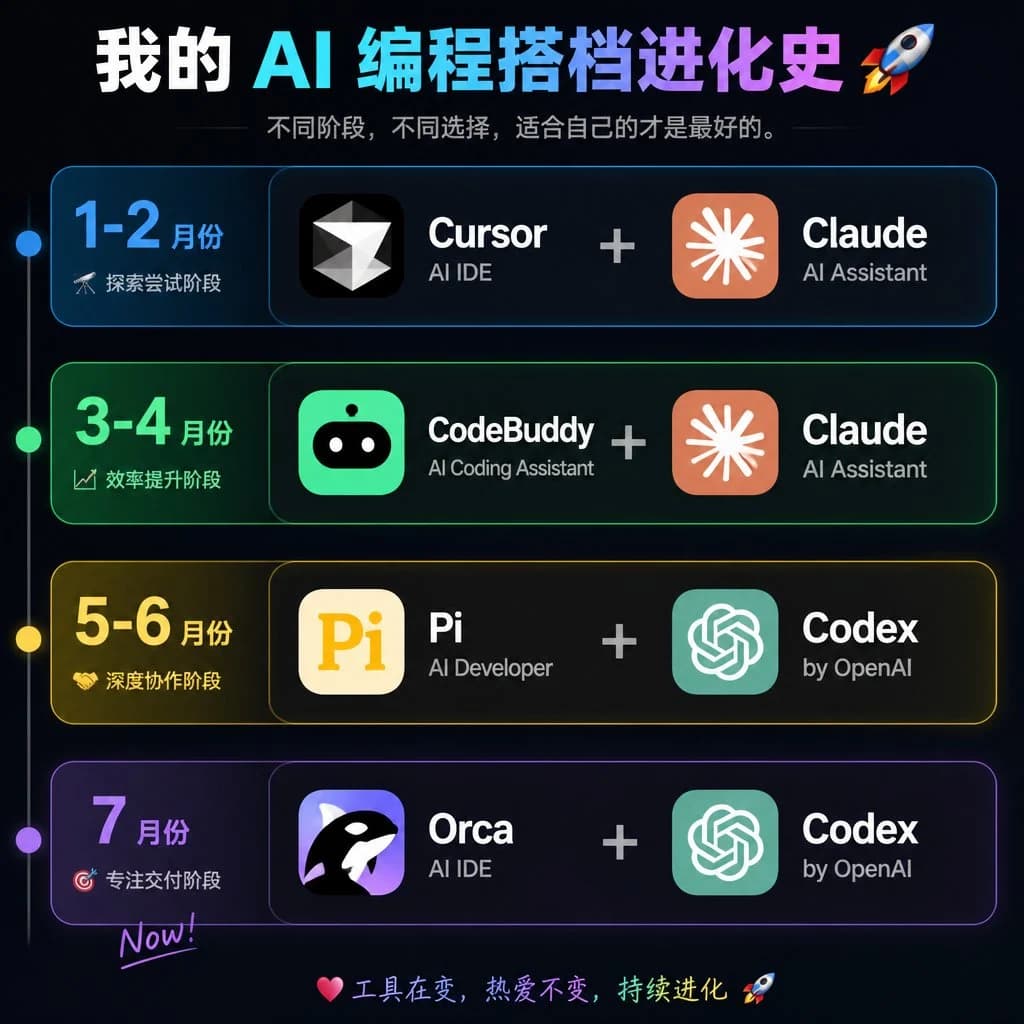
392 wordsGoal: Create a dark neon Chinese timeline infographic poster showing the evolution history of an AI programming partner stack, with four horizontal stage cards and paired software tools.
Canvas: Square 1:1 image, about 768×768 px, black-to-deep-navy background with subtle glow, thin neon strokes, high-contrast modern tech aesthetic.
Header: Large bold Chinese headline at the top: {argument name="headline text" default="我的 AI 编程搭档进化史 🚀"}. Use a white-to-cyan-to-purple gradient emphasis across the AI/programming words. Under it, add a smaller gray subtitle: {argument name="subtitle text" default="不同阶段,不同选择,适合自己的才是最好的。"} with thin horizontal divider lines on both sides.
Layout: Four stacked rounded rectangular timeline cards, evenly spaced vertically. A thin vertical timeline line runs down the far left with exactly 4 glowing circular nodes aligned to the 4 rows: blue, green, yellow, purple. Each row has a left date/stage block and a larger right tools block. The right block shows exactly 2 app tiles separated by a large plus sign.
Rows: Use exactly 4 rows. Row 1 is blue and labeled {argument name="row one text" default="1-2 月份|探索尝试阶段"}; tools are Cursor + Claude. Row 2 is green and labeled {argument name="row two text" default="3-4 月份|效率提升阶段"}; tools are CodeBuddy + Claude. Row 3 is yellow and labeled {argument name="row three text" default="5-6 月份|深度协作阶段"}; tools are Pi + Codex. Row 4 is purple and labeled {argument name="row four text" default="7 月份|专注交付阶段|Now!"}; tools are Orca + Codex.
App tiles and icons: Create exactly 8 app icon/name groups total: 1) Cursor, black rounded-square icon with a white faceted diamond/cursor mark, sublabel “AI IDE”; 2) Claude, orange rounded-square icon with a white radial starburst, sublabel “AI Assistant”; 3) CodeBuddy, bright green rounded-square icon with a cute black robot face and white eyes, sublabel “AI Coding Assistant”; 4) Claude, same as above; 5) Pi, cream rounded-square icon with large yellow “Pi”, sublabel “AI Developer”; 6) Codex, teal rounded-square OpenAI knot style icon, sublabel “by OpenAI”; 7) Orca, purple rounded-square icon with a black-and-white orca whale, sublabel “AI IDE”; 8) Codex, same as above. Tool names are large bold white text; sublabels are smaller light gray text. Plus signs are large, centered, and light gray.
Footer: At the bottom center, add a small colorful handwritten-style line: “💗 工具在变,热爱不变,持续进化 🚀”.
Visual style: Cyber UI dashboard look, rounded cards with translucent dark fill, colored neon borders matching each row, soft outer glows, crisp typography, clean alignment, no clutter, no watermark.About this prompt
AI Coding Partner Timeline is a ready-to-use infographic prompt for GPT Image 2 on Image 2. Copy the 392 words below, paste them into the Create form, and you will get a result close to the preview above. Tweak the Infographic, Mockup, Cyberpunk tag if you want to push it somewhere new.
Use it as a starting point, then adjust the subject, lighting, or composition to suit your idea. The credit cost stays the same whether you use it as written or customize it.
Use case
A strong starting point for Infographic
Start here when you want a infographic image inspired by AI Coding Partner Timeline. The prompt already sets the look and composition; replace the subject, product, colors, or scene details to match your project.
Easy places to tweak
- Subject Swap in your person, product, place, or object without changing the overall composition.
- Look and mood Tune the lighting, palette, camera angle, or materials so the image fits your brand.
- Final format Set the aspect ratio, background, text, or layout notes before you generate.
More prompt paths to explore
Find more GPT Image 2 prompts with a similar style, use case, or subject.
How to use it
- Step 1
Copy the prompt
Hit the Copy button above to grab the full text.
- Step 2
Open Image 2 Create
Head to the Create form and paste it in.
- Step 3
Generate
Hit Generate. Your version lands in seconds.
Make it yours
Load the prompt into the Create form with one click, then start tweaking.