Prompt
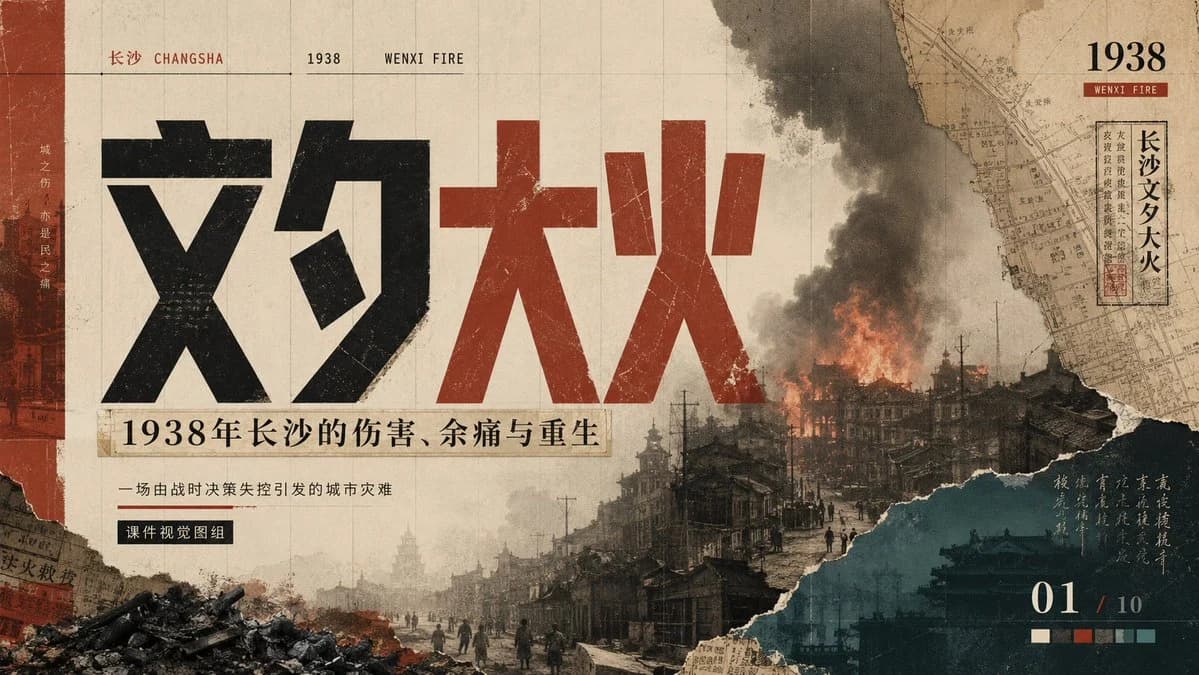
435 wordsGoal: Create a 16:9 cinematic historical PowerPoint cover slide about the {argument name="historical event" default="Wenxi Fire in Changsha, 1938"}, using a heavy archival collage aesthetic that feels solemn, painful, and reflective.
Canvas: Wide presentation slide, 1200×675 or 16:9. Use an aged beige paper background with faint grid lines, scratches, stains, fold marks, dust, and worn print texture. The overall palette is sepia, charcoal black, brick red, smoky gray, and deep teal.
Layout: Design one dense poster-like slide with exactly 5 main visual zones: 1) a narrow vertical brick-red strip on the far left with faint city imagery and vertical Chinese text, 2) a huge central title occupying the left and middle of the slide, 3) a burning ruined city panorama across the lower half and right center, 4) a torn-paper map collage in the upper-right corner, and 5) a dark teal torn-paper information block in the lower-right corner.
Text content: At the top-left, set small bilingual/location text: “长沙 CHANGSHA”, then “1938”, then “WENXI FIRE”, separated by thin horizontal rules. The main title must be enormous Chinese typography reading “文夕大火”, with “文夕” in distressed black and “大火” in distressed dark red. Under the title, place a beige label strip reading “1938年长沙的伤害、余痛与重生”. Below it, add a smaller subtitle: “一场由战时决策失控引发的城市灾难”. Under that, add a small black rectangular tag reading “课件视觉图组”. In the upper-right, add a bold “1938” with a small red label “WENXI FIRE”, plus a vertical framed Chinese stamp-like label reading “长沙文夕大火”. In the lower-right, add a large page indicator “01 / 10”. Include one short vertical handwritten-style Chinese note over the teal panel, subtle and atmospheric.
Subject details: The city scene should show old Changsha streets in ruins, dark silhouettes of people walking, damaged traditional and early modern buildings, telephone poles, rubble piles, and a large building burning with orange flames and thick black smoke rising into the sky. Add torn collage edges where the city photo meets the paper background. Include exactly 1 prominent fire plume, exactly 1 large smoke column, exactly 1 rubble pile in the lower-left foreground, exactly 1 torn map fragment in the upper-right, and exactly 1 teal torn-paper block in the lower-right.
Visual style: Heavy historical aesthetics, archival documentary poster, Chinese modernist editorial design, distressed letterpress typography, old newspaper collage, torn paper, grainy halftone, scratches, muted contrast, somber memorial mood. Use bold geometric Chinese title characters with rough ink erosion and printed wear. Keep the composition dramatic but readable.
Constraints: Do not make it look modern, glossy, or clean. Avoid extra decorative icons, people portraits, watermarks, or random English filler text. Preserve the exact slide/page feeling and the solemn historical tone.About this prompt
Wenxi Fire Historical PPT Cover is a ready-to-use infographic prompt for GPT Image 2 on Image 2. Copy the 435 words below, paste them into the Create form, and you will get a result close to the preview above. Tweak the Infographic, Product, Travel tag if you want to push it somewhere new.
Use it as a starting point, then adjust the subject, lighting, or composition to suit your idea. The credit cost stays the same whether you use it as written or customize it.
Use case
A strong starting point for Infographic
Start here when you want a infographic image inspired by Wenxi Fire Historical PPT Cover. The prompt already sets the look and composition; replace the subject, product, colors, or scene details to match your project.
Easy places to tweak
- Subject Swap in your person, product, place, or object without changing the overall composition.
- Look and mood Tune the lighting, palette, camera angle, or materials so the image fits your brand.
- Final format Set the aspect ratio, background, text, or layout notes before you generate.
More prompt paths to explore
Find more GPT Image 2 prompts with a similar style, use case, or subject.
How to use it
- Step 1
Copy the prompt
Hit the Copy button above to grab the full text.
- Step 2
Open Image 2 Create
Head to the Create form and paste it in.
- Step 3
Generate
Hit Generate. Your version lands in seconds.
Make it yours
Load the prompt into the Create form with one click, then start tweaking.