Prompt
384 words{
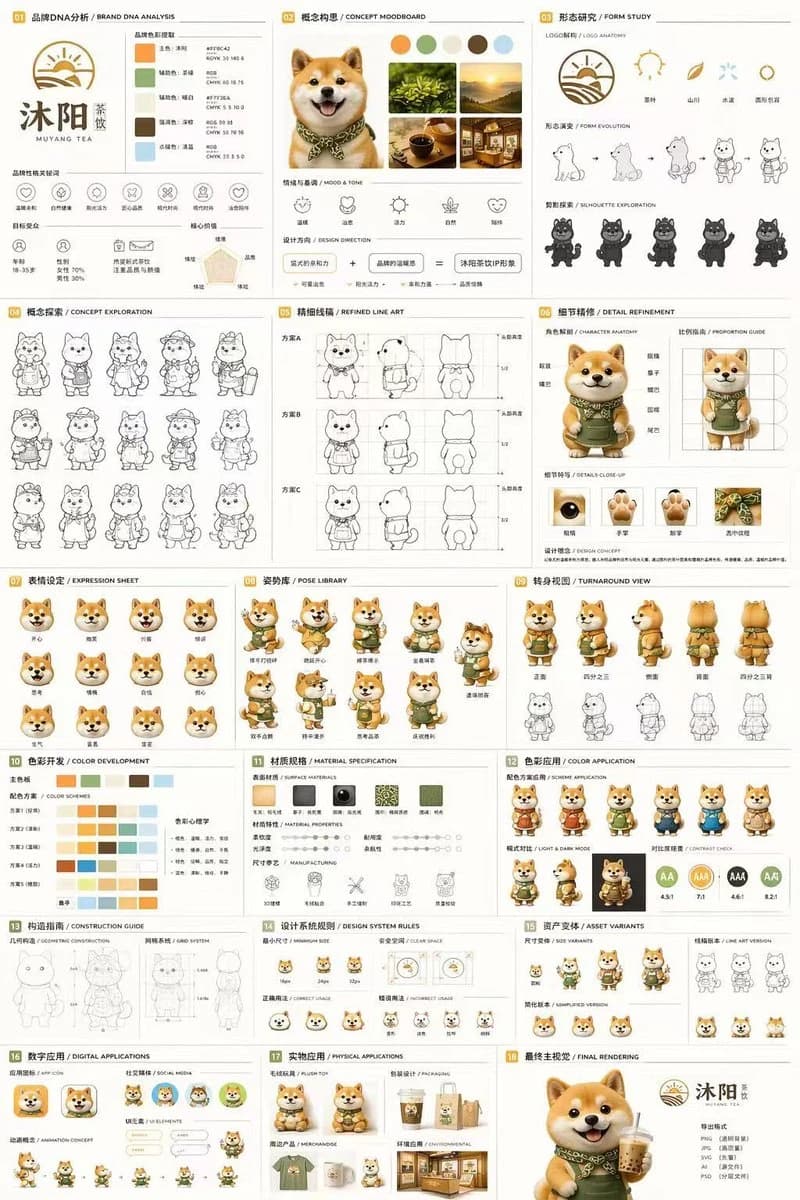
"type": "18-section complete brand identity and mascot design sheet",
"brand": {
"name": "{argument name=\"brand name\" default=\"MUYANG TEA\"}",
"industry": "{argument name=\"industry\" default=\"tea shop\"}",
"colors": ["{argument name=\"primary color\" default=\"yellow\"}", "{argument name=\"secondary color\" default=\"green\"}", "white", "brown", "dark green"]
},
"subject": "{argument name=\"character description\" default=\"3D rendered cute Shiba Inu mascot wearing a green apron\"}",
"layout": {
"grid": "3-column by 6-row grid layout",
"sections": [
{
"title": "01 BRAND DNA ANALYSIS",
"elements": ["brand logo", "5 color swatches", "6 brand icons", "target audience charts"]
},
{
"title": "02 CONCEPT MOODBOARD",
"elements": ["5 reference photos", "4 mood icons", "design concept equation"]
},
{
"title": "03 FORM STUDY",
"elements": ["4 logo anatomy icons", "4 design evolution steps", "4 character silhouettes"]
},
{
"title": "04 CONCEPT EXPLORATION",
"elements": ["12 line-art character concept sketches"]
},
{
"title": "05 REFINED LINE ART",
"elements": ["3 rows of front and side view line art with proportion guides"]
},
{
"title": "06 DETAIL REFINEMENT",
"elements": ["2 full-body renders with annotation labels", "4 circular close-up views"]
},
{
"title": "07 EXPRESSION SHEET",
"elements": ["11 3D rendered facial expressions"]
},
{
"title": "08 POSE LIBRARY",
"elements": ["9 full-body 3D rendered character poses"]
},
{
"title": "09 TURNAROUND VIEW",
"elements": ["5 full-body 3D renders from multiple angles", "5 matching line-art views"]
},
{
"title": "10 COLOR DEVELOPMENT",
"elements": ["5 rows of 5-color palette options", "color psychology explanations"]
},
{
"title": "11 MATERIAL SPECIFICATION",
"elements": ["5 surface texture swatches", "material property sliders", "4 manufacturing process icons"]
},
{
"title": "12 COLOR APPLICATION",
"elements": ["4 color scheme variant renders", "2 light and dark mode renders", "4 contrast rating indicators"]
},
{
"title": "13 CONSTRUCTION GUIDE",
"elements": ["2 line-art technical diagrams for geometry and grid system"]
},
{
"title": "14 DESIGN SYSTEM RULES",
"elements": ["minimum size icons", "clear space diagram", "4 correct and incorrect usage examples"]
},
{
"title": "15 ASSET VARIANTS",
"elements": ["3 scaled size variants", "3 line-art style variants", "3 simplified flat icon heads"]
},
{
"title": "16 DIGITAL APPLICATIONS",
"elements": ["1 app icon design", "2 social media avatar versions", "UI component elements", "3-frame animation cycle"]
},
{
"title": "17 PHYSICAL APPLICATIONS",
"elements": ["plush toy product mockup", "product packaging mockup", "branded merchandise mockup", "retail storefront mockup"]
},
{
"title": "18 FINAL RENDERING",
"elements": ["large high-resolution 3D mascot render holding tea cup", "finalized logo", "deliverable file format list"]
}
]
}
}About this prompt
Mascot Brand Identity Sheet is a ready-to-use ui mockup prompt for GPT Image 2 on Image 2. Copy the 384 words below, paste them into the Create form, and you will get a result close to the preview above. Tweak the Social Media, Infographic, UI tag if you want to push it somewhere new.
Use it as a starting point, then adjust the subject, lighting, or composition to suit your idea. The credit cost stays the same whether you use it as written or customize it.
Use case
A strong starting point for UI Mockup
Start here when you want a ui mockup image inspired by Mascot Brand Identity Sheet. The prompt already sets the look and composition; replace the subject, product, colors, or scene details to match your project.
Easy places to tweak
- Subject Swap in your person, product, place, or object without changing the overall composition.
- Look and mood Tune the lighting, palette, camera angle, or materials so the image fits your brand.
- Final format Set the aspect ratio, background, text, or layout notes before you generate.
More prompt paths to explore
Find more GPT Image 2 prompts with a similar style, use case, or subject.
How to use it
- Step 1
Copy the prompt
Hit the Copy button above to grab the full text.
- Step 2
Open Image 2 Create
Head to the Create form and paste it in.
- Step 3
Generate
Hit Generate. Your version lands in seconds.
Make it yours
Load the prompt into the Create form with one click, then start tweaking.