Prompt
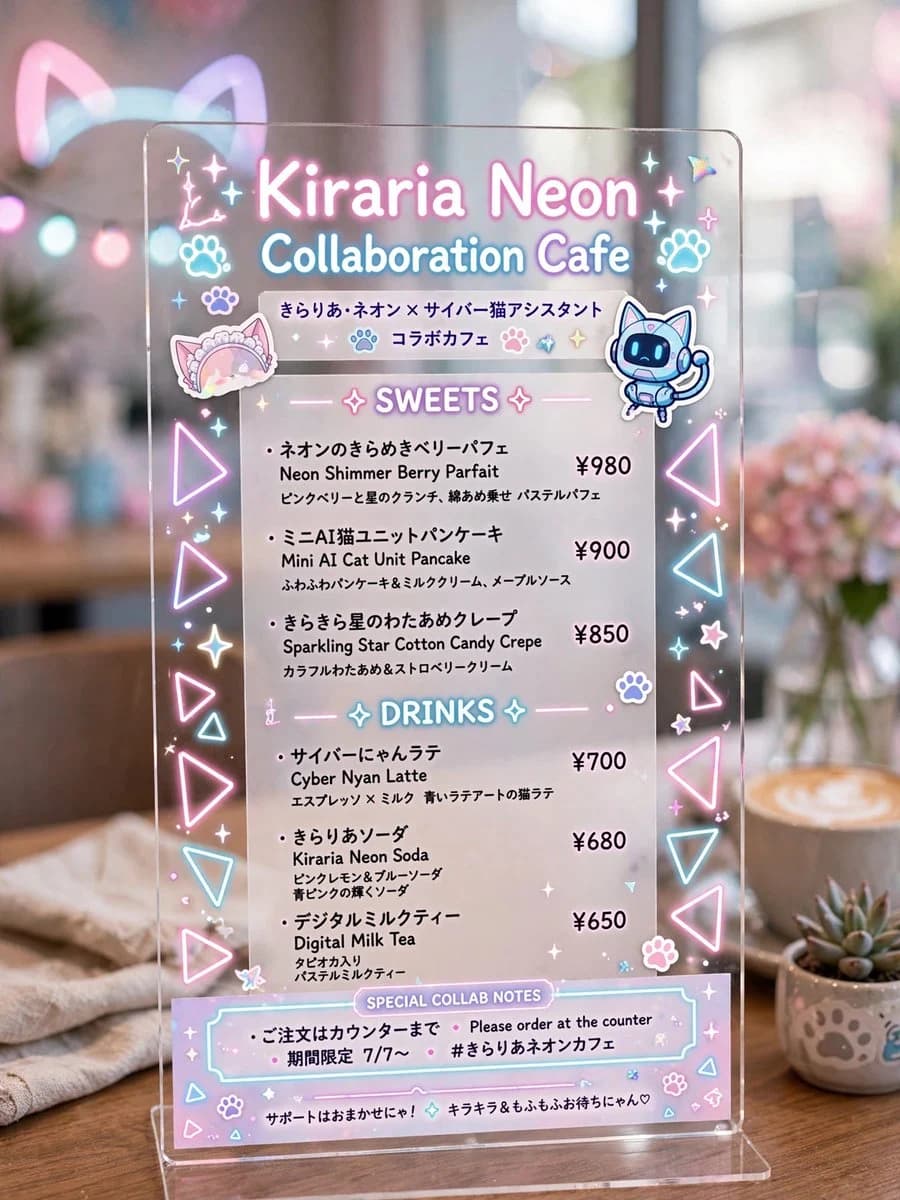
451 wordsGoal: Create a photorealistic vertical image of a transparent acrylic tabletop menu sign for a cute futuristic anime collaboration cafe, styled with glowing pastel neon graphics and Japanese cafe-menu typography.
Canvas: Vertical 3:4 composition, close-up product-photography framing. The acrylic sign is centered and fills most of the image, standing on a clear base on a wooden cafe table. Background is softly blurred with warm cafe bokeh, a latte on the right, a small succulent in a paw-print pot, pink flowers, soft window light, and faint glowing cat-ear shapes in the distance.
Main sign: A clear rectangular acrylic board with rounded corners, subtle reflections, glossy edges, and printed/neon-looking pastel graphics. Use pink, cyan, lavender, and white glow effects as if the graphics are lit from within.
Headline text: Large glowing title at top: {argument name="cafe name" default="Kiraria Neon"}. Under it, glowing subtitle: {argument name="event subtitle" default="Collaboration Cafe"}. Beneath that, include Japanese collaboration text: 「きらりあ・ネオン × サイバー猫アシスタント」 and 「コラボカフェ」.
Decorations: Include exactly 2 character stickers near the top area: 1 pastel frilly cat-ear headband sticker on the left, and 1 cute blue cyber cat robot assistant sticker on the right. Include exactly 2 paw icons near the headline, many small star sparkles, tiny hearts, flowers, and holographic accents. Along both vertical edges, place repeated glowing triangle icons in pink and cyan; make exactly 10 large triangle outlines total, 5 on the left edge and 5 on the right edge.
Menu layout: White semi-transparent printed menu panel on the acrylic, with two centered neon section headers.
Section 1 header: “SWEETS” with sparkle symbols. Include exactly 3 sweets items, each with Japanese name, English name, short Japanese description, and price aligned on the right:
1. 「ネオンのきらめきベリーパフェ」 / “Neon Shimmer Berry Parfait” / price “¥980”.
2. 「ミニAI猫ユニットパンケーキ」 / “Mini AI Cat Unit Pancake” / price “¥900”.
3. 「きらきら星のわたあめクレープ」 / “Sparkling Star Cotton Candy Crepe” / price “¥850”.
Section 2 header: “DRINKS” with sparkle symbols. Include exactly 3 drinks items, each with Japanese name, English name, short Japanese description, and price aligned on the right:
1. 「サイバーにゃんラテ」 / “Cyber Nyan Latte” / price “¥700”.
2. 「きらりあソーダ」 / “Kiraria Neon Soda” / price “¥680”.
3. 「デジタルミルクティー」 / “Digital Milk Tea” / price “¥650”.
Bottom notes: Add a pastel outlined box labeled “SPECIAL COLLAB NOTES”. Inside, include exactly 3 note lines: 「ご注文はカウンターまで」, “Please order at the counter”, and 「期間限定 7/7〜」 plus hashtag “#きらりあネオンカフェ”. At the very bottom, add a tiny support message in Japanese: 「サポートはおまかせにゃ! キラキラ&もふもふお待ちにゃん♡」.
Visual style: Hyper-detailed realistic cafe photography mixed with kawaii cyber-neon graphic design, shallow depth of field, soft pastel lighting, clean readable printed text, glossy transparent acrylic, dreamy bokeh, cozy wood tabletop, no people, no watermark. Keep the menu cute, polished, and highly legible.About this prompt
Kiraria Neon Collaboration Cafe Menu is a ready-to-use e-commerce prompt for GPT Image 2 on Image 2. Copy the 451 words below, paste them into the Create form, and you will get a result close to the preview above. Tweak the Product Ad, E-commerce, Infographic tag if you want to push it somewhere new.
Use it as a starting point, then adjust the subject, lighting, or composition to suit your idea. The credit cost stays the same whether you use it as written or customize it.
Use case
A strong starting point for E-commerce
Start here when you want a e-commerce image inspired by Kiraria Neon Collaboration Cafe Menu. The prompt already sets the look and composition; replace the subject, product, colors, or scene details to match your project.
Easy places to tweak
- Subject Swap in your person, product, place, or object without changing the overall composition.
- Look and mood Tune the lighting, palette, camera angle, or materials so the image fits your brand.
- Final format Set the aspect ratio, background, text, or layout notes before you generate.
More prompt paths to explore
Find more GPT Image 2 prompts with a similar style, use case, or subject.
How to use it
- Step 1
Copy the prompt
Hit the Copy button above to grab the full text.
- Step 2
Open Image 2 Create
Head to the Create form and paste it in.
- Step 3
Generate
Hit Generate. Your version lands in seconds.
Make it yours
Load the prompt into the Create form with one click, then start tweaking.