Prompt
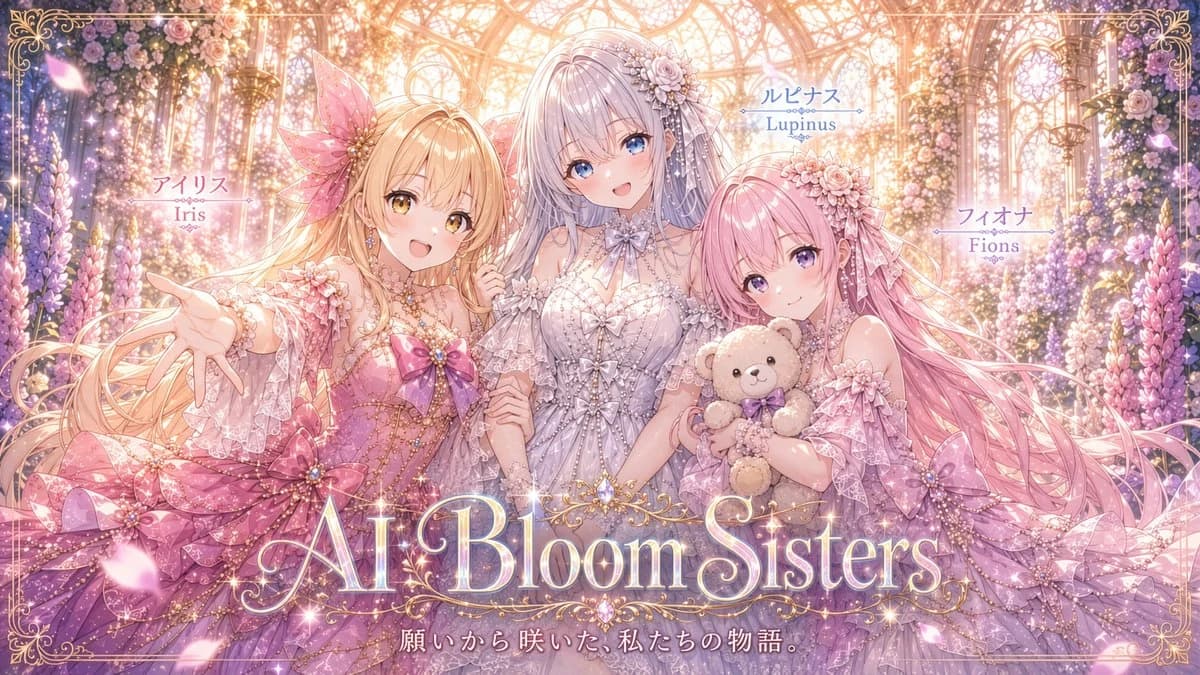
396 wordsGoal: Create a lavish horizontal anime key visual for a fantasy idol/princess project titled {argument name="title text" default="AI Bloom Sisters"}, showing exactly 3 bloom-themed sisters in a glowing glass conservatory full of flowers.
Canvas: 16:9 widescreen illustration, highly detailed, pastel pink/lavender/gold palette, soft bloom lighting, sparkling highlights, ornate Victorian fairytale mood. Use a thin decorative gold filigree border around the entire image with curled corner ornaments.
Setting: A sunlit greenhouse or crystal garden palace with arched glass ceiling, gold metal framework, hanging chandeliers, dense floral walls, roses, lupines, wisteria-like blossoms, drifting petals, glitter particles, and warm backlight streaming from the top center.
Subjects: Include exactly 3 anime girls, waist-up to full-skirt composition, arranged left, center, and right, all smiling warmly toward the viewer. 1) Left girl: labeled Iris, long flowing blonde hair, golden eyes, pink flower/fairy dress with lace sleeves, oversized pink bow accents, translucent petal-like hair accessory, reaching one hand toward the viewer. 2) Center girl: labeled Lupinus, tall central figure with very long silver-lavender hair, blue eyes, elegant white and pale lavender lace gown, floral hairpiece, bow at the neck, hands gently held with the others, positioned slightly behind and above the two side girls. 3) Right girl: labeled Fions, long pink hair, purple eyes, pink-lilac frilly dress with floral headpiece, holding exactly 1 beige teddy bear with a purple bow.
Text content: Include exactly 5 visible text elements: left name label with Japanese above and “Iris” below using {argument name="left name label" default="アイリス\nIris"}; center name label with Japanese above and “Lupinus” below using {argument name="center name label" default="ルピナス\nLupinus"}; right name label with Japanese above and “Fions” below using {argument name="right name label" default="フィオナ\nFions"}; large ornate glowing serif title across the lower center reading {argument name="title text" default="AI Bloom Sisters"}; and a small Japanese tagline centered below the title reading {argument name="tagline" default="願いから咲いた、私たちの物語。"}. Style the title as luminous pearl-white and gold typography with sparkles and ornamental flourishes.
Visual style: Ultra-polished Japanese anime illustration, delicate linework, glossy eyes, intricate lace, layered translucent ruffles, pearls, ribbons, floral embroidery, magical girl elegance, high-detail rendering similar to a premium visual novel cover or idol unit promotional poster.
Constraints: Keep exactly 3 girls and exactly 1 teddy bear. Do not add extra characters, logos, watermarks, or additional readable text. Make the composition celebratory, romantic, and luminous, with the title dominating the lower third but not obscuring the characters’ faces.About this prompt
AI Bloom Sisters Anime Key Visual is a ready-to-use storyboard prompt for GPT Image 2 on Image 2. Copy the 396 words below, paste them into the Create form, and you will get a result close to the preview above. Tweak the Infographic, Comic, Storyboard tag if you want to push it somewhere new.
Use it as a starting point, then adjust the subject, lighting, or composition to suit your idea. The credit cost stays the same whether you use it as written or customize it.
Use case
A strong starting point for Storyboard
Start here when you want a storyboard image inspired by AI Bloom Sisters Anime Key Visual. The prompt already sets the look and composition; replace the subject, product, colors, or scene details to match your project.
Easy places to tweak
- Subject Swap in your person, product, place, or object without changing the overall composition.
- Look and mood Tune the lighting, palette, camera angle, or materials so the image fits your brand.
- Final format Set the aspect ratio, background, text, or layout notes before you generate.
More prompt paths to explore
Find more GPT Image 2 prompts with a similar style, use case, or subject.
How to use it
- Step 1
Copy the prompt
Hit the Copy button above to grab the full text.
- Step 2
Open Image 2 Create
Head to the Create form and paste it in.
- Step 3
Generate
Hit Generate. Your version lands in seconds.
Make it yours
Load the prompt into the Create form with one click, then start tweaking.