Prompt
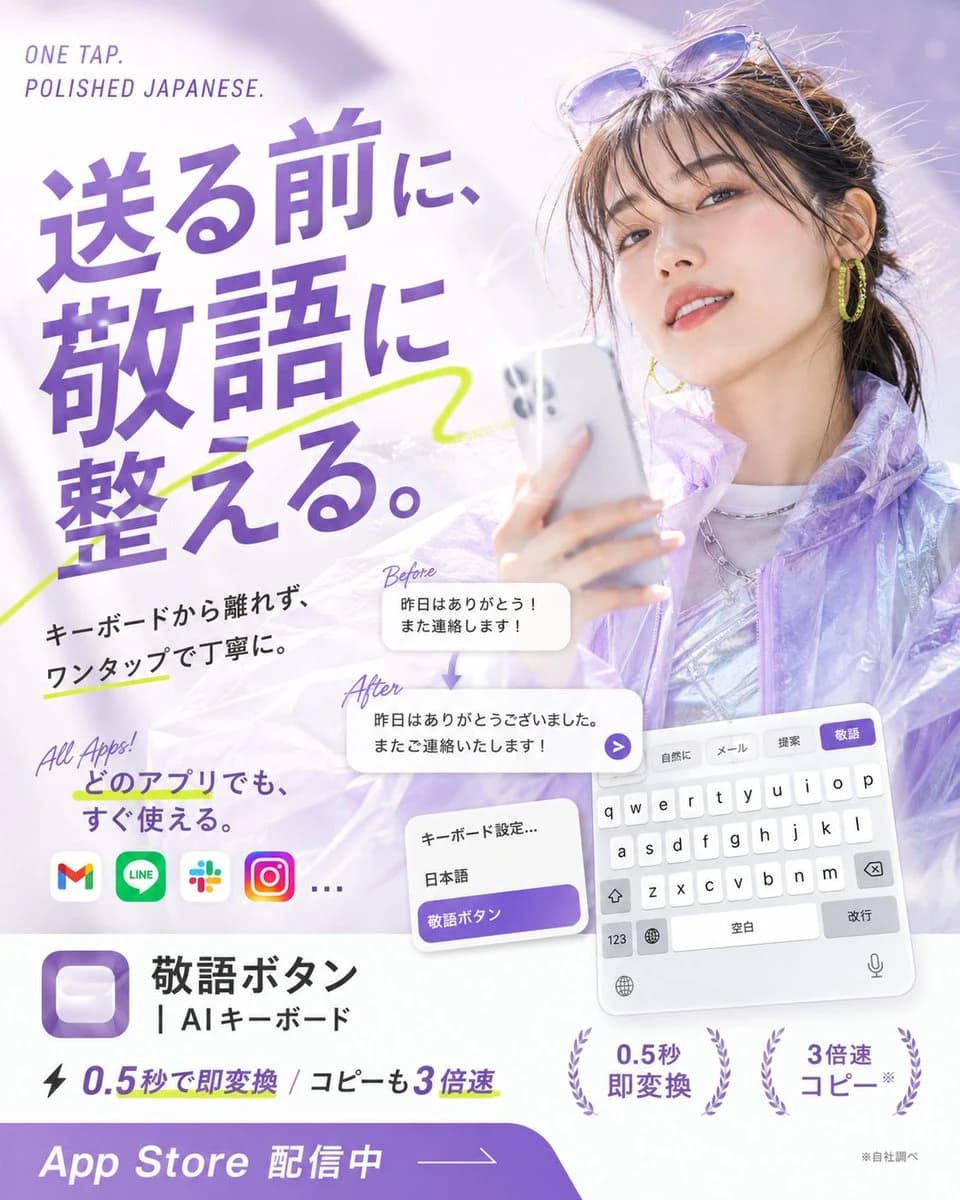
476 wordsGoal: Create a glossy Japanese App Store promotional poster for an AI keyboard app that converts casual Japanese into polite keigo with one tap, combining fashion photography, app UI mockups, and bold typography.
Canvas: Square 1:1 poster, bright white and lavender palette, high-key lighting, soft bokeh, airy translucent gradients, polished mobile-app advertising style.
Main visual: On the right half, show a stylish young Japanese woman holding a silver smartphone, photographed like a beauty/fashion ad. She has dark brown hair tied back with loose bangs, sunglasses resting on her head, yellow hoop earrings, subtle makeup, a slight smile, and a translucent iridescent lavender jacket over a shiny silver top. Use a dreamy pale purple background with soft light flares.
Headline and text layout: On the upper left, place small English text “ONE TAP. POLISHED JAPANESE.” Above the main copy. The largest Japanese headline should dominate the left side in bold purple type: {argument name="headline text" default="送る前に、敬語に整える。"} Add a neon yellow-green hand-drawn underline/swoosh crossing behind the headline.
Supporting copy: Below the headline, add black Japanese body text: {argument name="supporting copy" default="キーボードから離れず、ワンタップで丁寧に。"} Add a handwritten purple note “All Apps!” and Japanese text {argument name="all apps text" default="どのアプリでも、すぐ使える。"}
App compatibility row: Show exactly 4 recognizable rounded app icons plus an ellipsis: Gmail, LINE, Slack, Instagram, then “…”.
Transformation example: In the center-lower area, show exactly 2 rounded white message cards connected by a small downward purple arrow. The top card is labeled “Before” in handwritten purple script and contains: {argument name="before message" default="昨日はありがとう!また連絡します!"} The bottom card is labeled “After” and contains: {argument name="after message" default="昨日はありがとうございました。またご連絡いたします!"} Add a small purple circular send arrow button at the right edge of the after card.
Keyboard UI mockups: In the lower right, show a tilted iPhone-style Japanese keyboard panel with exactly 4 suggestion tabs at the top labeled “自然に”, “メール”, “提案”, and highlighted purple “敬語”. Include white QWERTY keys, space bar labeled “空白”, return key labeled “改行”, globe, microphone, and number key. Near it, show a smaller settings card with exactly 3 rows: “キーボード設定…”, “日本語”, and a purple highlighted row “敬語ボタン”.
App identity block: In the lower left, display a purple rounded-square app icon with a soft white keycap-like button inside. To its right, write the app name in Japanese: {argument name="app name" default="敬語ボタン"} and the subtitle “| AIキーボード”.
Feature claims: Along the bottom middle, include a lightning icon and the text “0.5秒で即変換 / コピーも3倍速”. Add exactly 2 laurel-badge claims on the lower right: “0.5秒 即変換” and “3倍速 コピー*”. Add tiny footnote text “※自社調べ”.
Bottom call-to-action: A thick purple curved banner spans the bottom edge with large white text “App Store 配信中” and a thin arrow line pointing right.
Visual style: Premium Japanese startup ad, clean editorial layout, bold purple typography, soft shadows, translucent glassmorphism cards, energetic lime marker accents, crisp readable UI text, no watermark, no extra logos beyond the specified app icons.About this prompt
Japanese AI Keyboard App Poster is a ready-to-use ad creative prompt for GPT Image 2 on Image 2. Copy the 476 words below, paste them into the Create form, and you will get a result close to the preview above. Tweak the Product Ad, Ad Creative, Social Media tag if you want to push it somewhere new.
Use it as a starting point, then adjust the subject, lighting, or composition to suit your idea. The credit cost stays the same whether you use it as written or customize it.
Use case
A strong starting point for Ad Creative
Start here when you want a ad creative image inspired by Japanese AI Keyboard App Poster. The prompt already sets the look and composition; replace the subject, product, colors, or scene details to match your project.
Easy places to tweak
- Subject Swap in your person, product, place, or object without changing the overall composition.
- Look and mood Tune the lighting, palette, camera angle, or materials so the image fits your brand.
- Final format Set the aspect ratio, background, text, or layout notes before you generate.
More prompt paths to explore
Find more GPT Image 2 prompts with a similar style, use case, or subject.
How to use it
- Step 1
Copy the prompt
Hit the Copy button above to grab the full text.
- Step 2
Open Image 2 Create
Head to the Create form and paste it in.
- Step 3
Generate
Hit Generate. Your version lands in seconds.
Make it yours
Load the prompt into the Create form with one click, then start tweaking.