Prompt
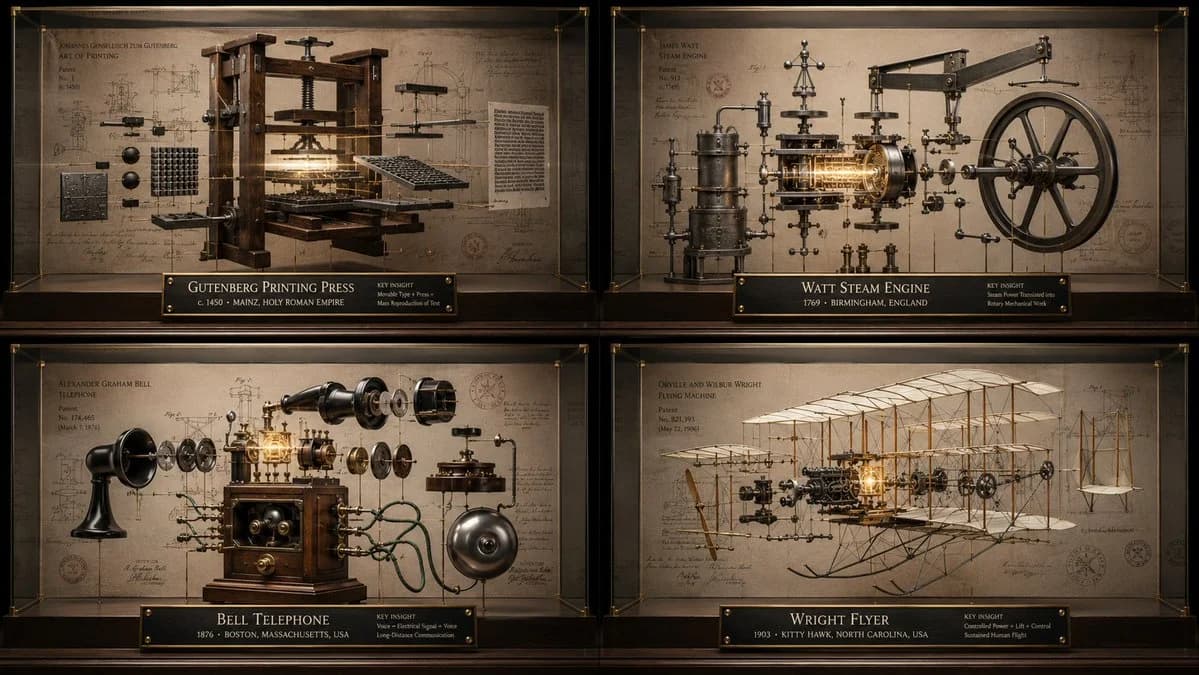
133 wordsHave done so many of these prompts on inventions. Here is another way to visualize them with GPT Image 2 Function DrawInventionReliquary(input invention) Input Variable: [INSERT INVENTION] System Instruction: Generate a hyper-realistic "Innovation Reliquary Exploded Diagram." 1. Semantic Extraction: AI infers: - Core problem solved - Mechanism - Historical era - Inventor culture - Materials - Failure points - Social impact 2. Container: Structure: floating exploded object inside a glass museum case. Every part is suspended on brass rods and fine tension wires. 3. Background: Patent-paper wall with faint diagrams, tolerances, labels, and archive stamps. 4. Integration: The invention’s key insight becomes a central glowing mechanism. 5. Visual Syntax: Materials: brushed steel, glass, brass, aged paper, black ink. Lighting: luxury product photography. No cheap blueprint clichés. Output: 2x2 grid, 16:9, four world-changing inventions.
About this prompt
Innovation Reliquary Diagram is a ready-to-use comparison prompt for GPT Image 2 on Image 2. Copy the 133 words below, paste them into the Create form, and you will get a result close to the preview above. Tweak the Infographic, Comparison, Product tag if you want to push it somewhere new.
Use it as a starting point and keep iterating: change the subject, lighting, or composition until it looks right. The credit cost stays the same whether you run it as-is or remix it.
Use case
A strong starting point for Comparison
Start here when you want a comparison image in the same direction as Innovation Reliquary Diagram. The prompt already sets the look and structure; swap in your own subject, product, colors, or scene details for the brief you have in mind.
Easy places to tweak
- Subject Swap in your person, product, place, or object without changing the overall composition.
- Look and mood Tune the lighting, palette, camera angle, or materials so the image fits your brand.
- Final format Set the aspect ratio, background, text, or layout notes before you generate.
More prompt paths to explore
Find more GPT Image 2 prompts with a similar style, use case, or subject.
How to use it
- Step 1
Copy the prompt
Hit the Copy button above to grab the full text.
- Step 2
Open Image 2 Create
Head to the Create form and paste it in.
- Step 3
Generate
Hit Generate. Your version lands in seconds.
Make it yours
Load the prompt into the Create form with one click, then start tweaking.