Image2

GPT Image 2 Photo to Sketch Converter

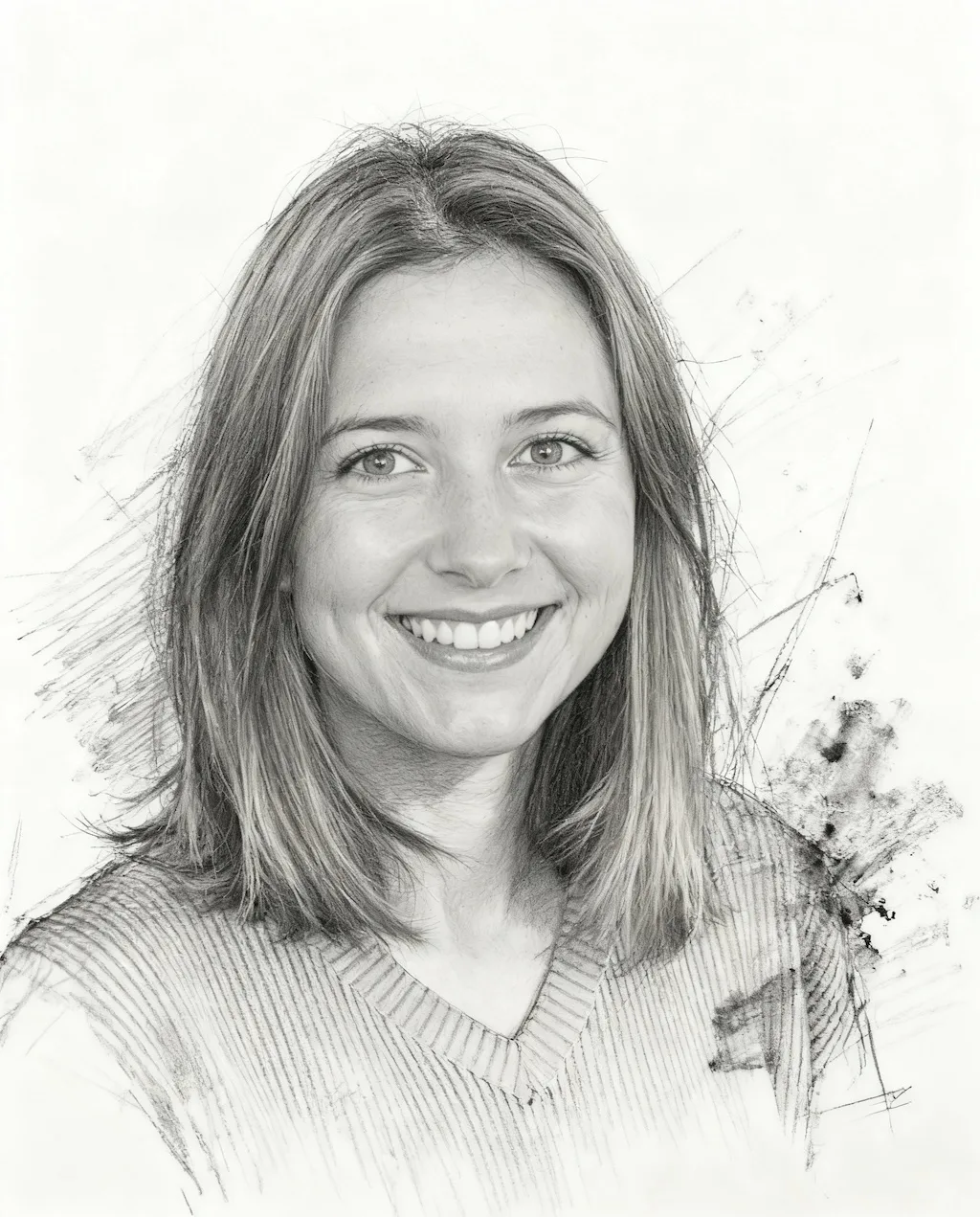
Use GPT Image 2 to convert photos to pencil sketches for portraits, architecture, products, and art references. This Photo to Sketch workflow focuses on graphite texture, cross-hatching, loose linework, and natural grayscale shading.

Photo To Sketch
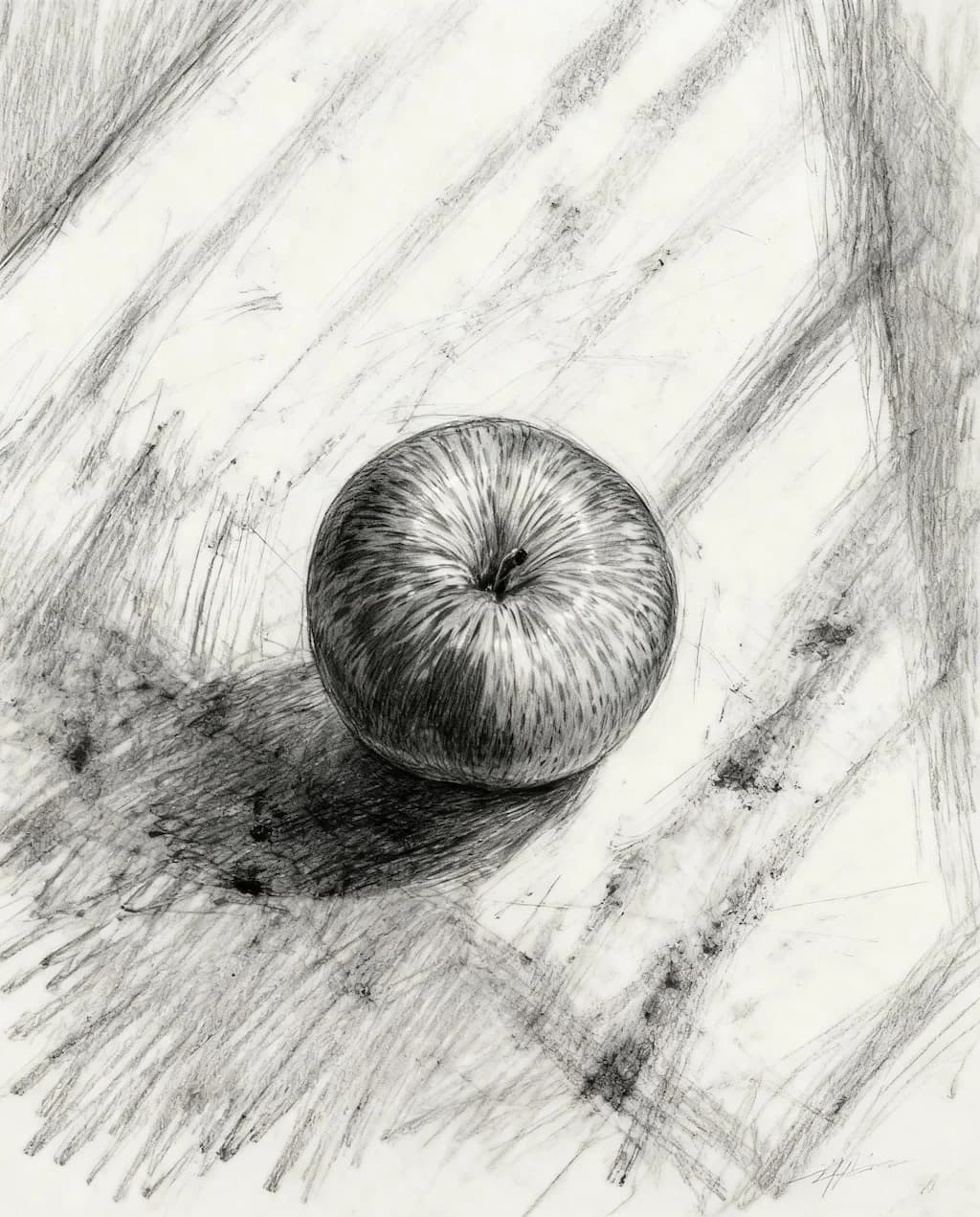
Photo to Sketch sample result

Create a Pencil Sketch

Upload a portrait, landscape, building, product, or still-life photo. GPT Image 2 will create a Photo to Sketch result with graphite texture, cross-hatching, loose linework, and natural grayscale shading.

Auto: 1K · 2K: 1:1, 16:9, 9:16, 4:3, 3:4 · 4K: 16:9, 9:16, 4:3, 3:4

Photo to Sketch Results

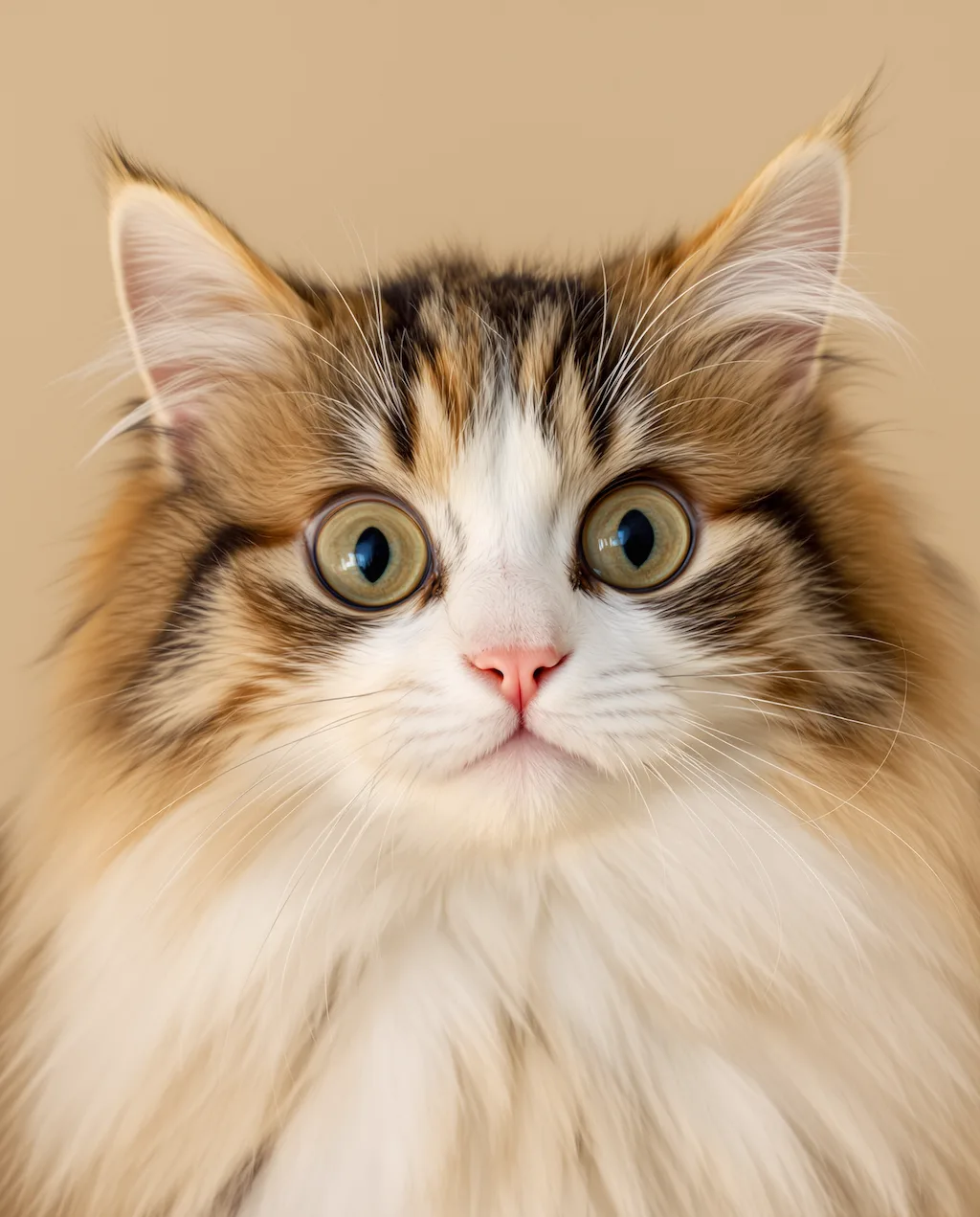
Original image example 1 - Before Image 2 AI transformation
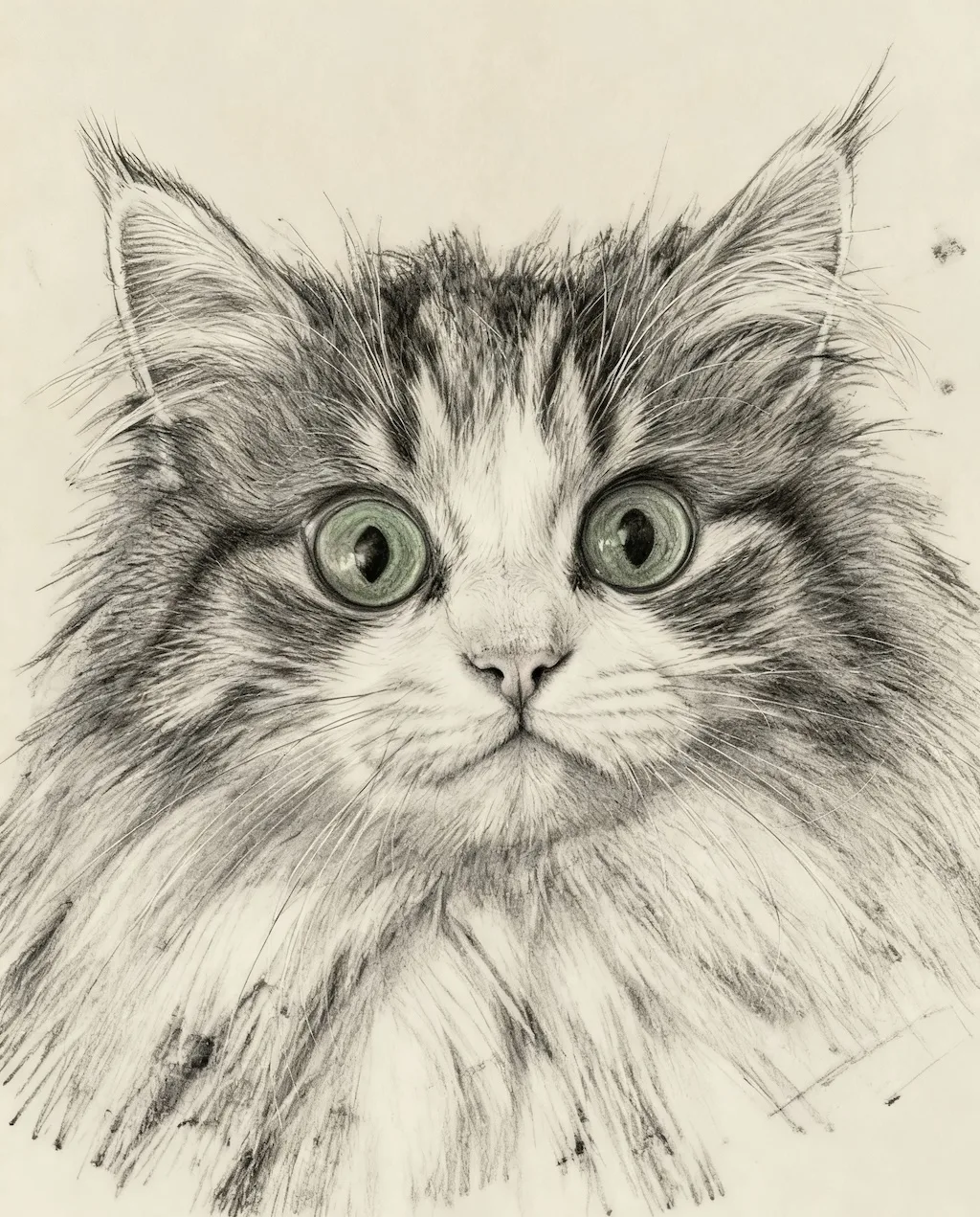
AI-generated result example 1 - After Image 2 transformation
Before
After
Original image example 2 - Before Image 2 AI transformation
AI-generated result example 2 - After Image 2 transformation
Before
After

Photo to Sketch Examples

See how Photo to Sketch works when you need to convert photos to pencil sketches for portraits, architecture, products, and art references.

01Transformations

Photo to Sketch before and after

Start with a portrait, landscape, building, product, or still-life photo; the result shows graphite texture, cross-hatching, loose linework, and natural grayscale shading in a clear before-and-after comparison.

02Transformations

Best source for Photo to Sketch

Best with a portrait, landscape, building, product, or still-life photo. Keep the main subject clear so GPT Image 2 can preserve recognizable detail while applying the Photo to Sketch look.

03Transformations

Where to use Photo to Sketch

Use it when you need to convert photos to pencil sketches for portraits, architecture, products, and art references. These examples show finished outputs, so users can judge the Photo to Sketch look before uploading.

Photo to Sketch FAQ

Common questions about using Photo to Sketch

Still have questions? Contact us at [email protected]