50% OFF
Image2

GPT Image 2 Bangs Filter

Use GPT Image 2 to try bangs online, preview fringe hairstyles, and create salon reference photos. This Bangs Filter workflow focuses on realistic fringe placement, matched hair color, natural texture, and face-framing balance.

Bangs FilterVirtual Bangs Try-On
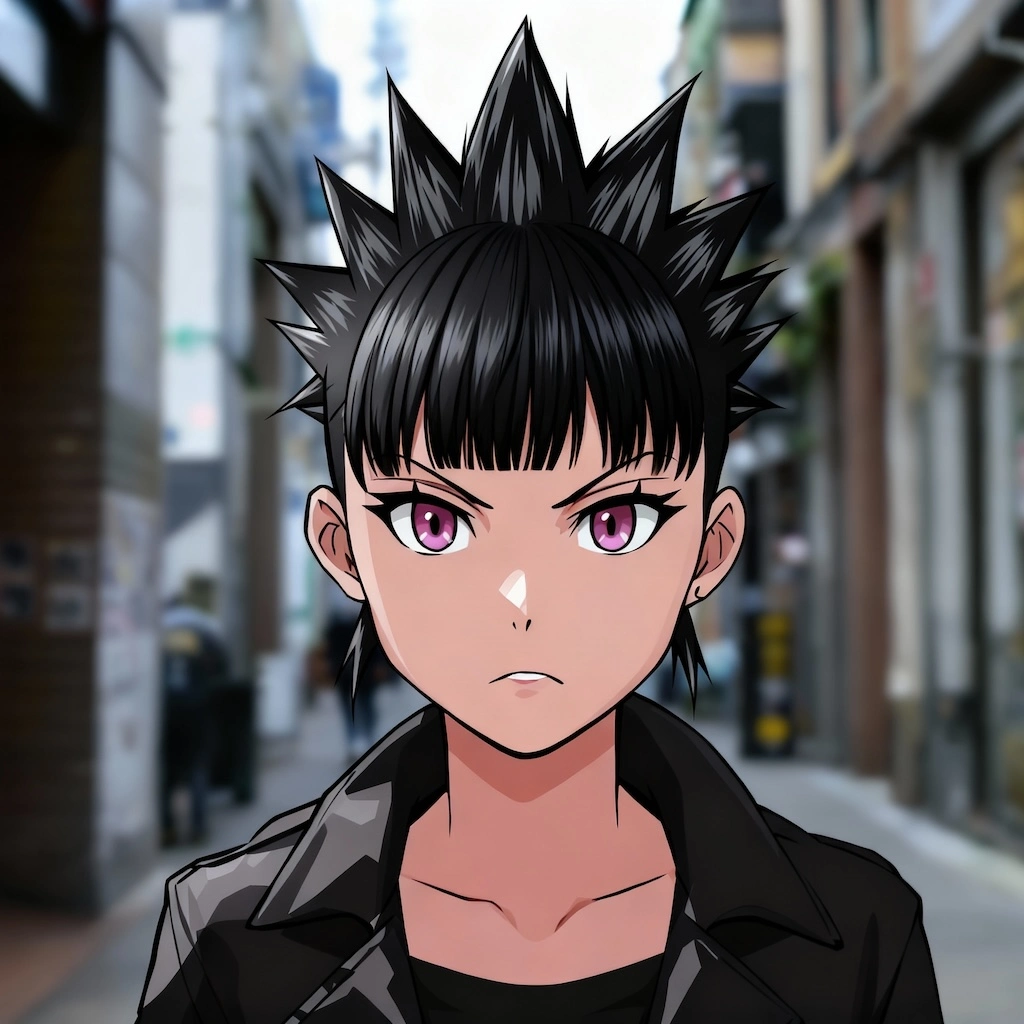
Bangs Filter sample result

Try Bangs

Upload a clear portrait with your hairline visible. GPT Image 2 will create a Bangs Filter result with realistic fringe placement, matched hair color, natural texture, and face-framing balance.

Bangs Filter Results

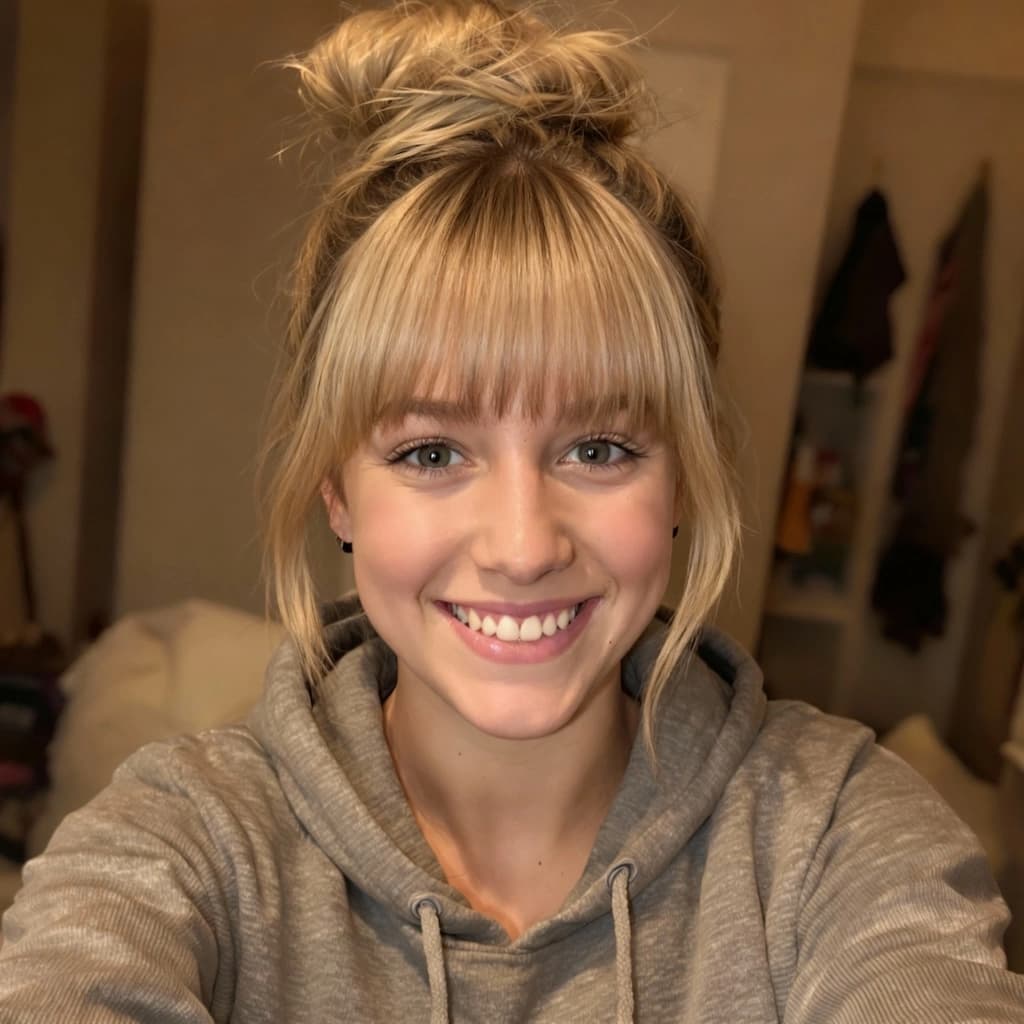
Original image example 1 - Before Image 2 AI transformation
AI-generated result example 1 - After Image 2 transformation
Before
After
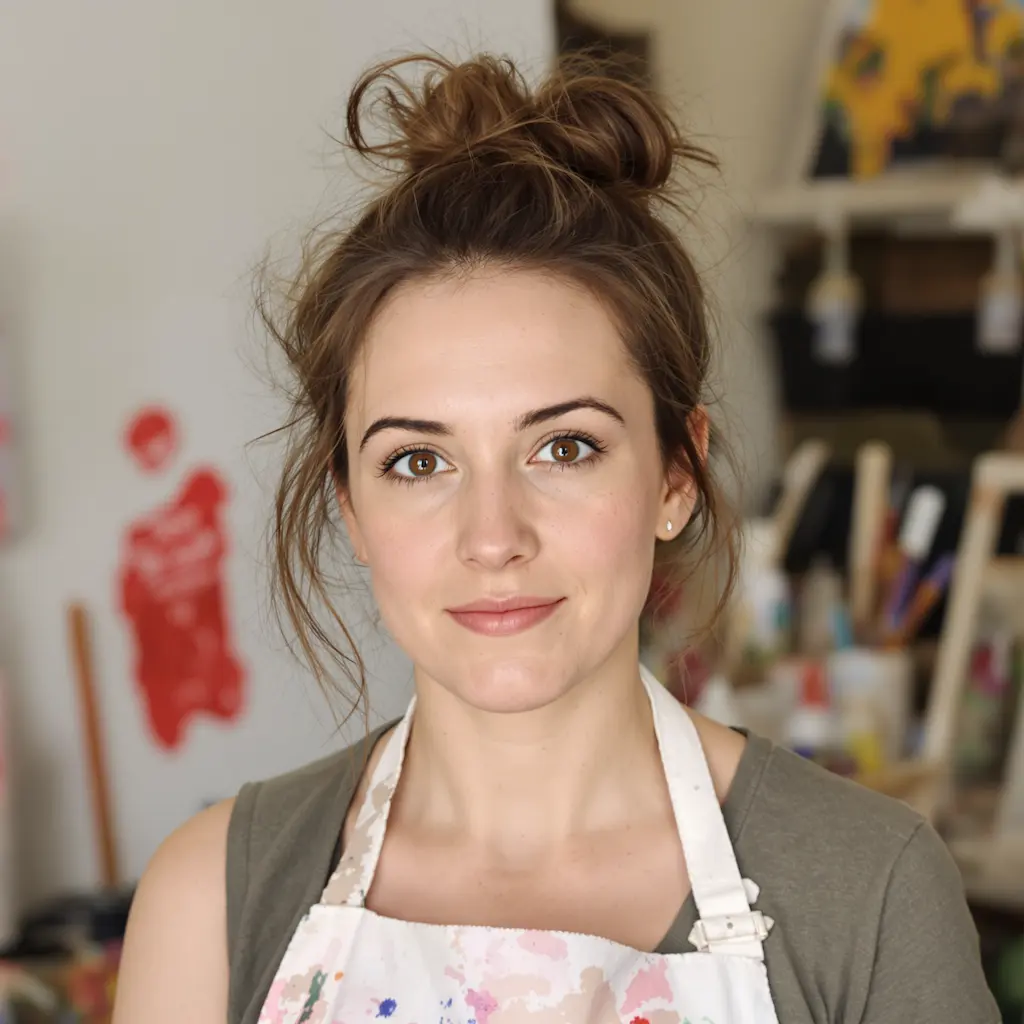
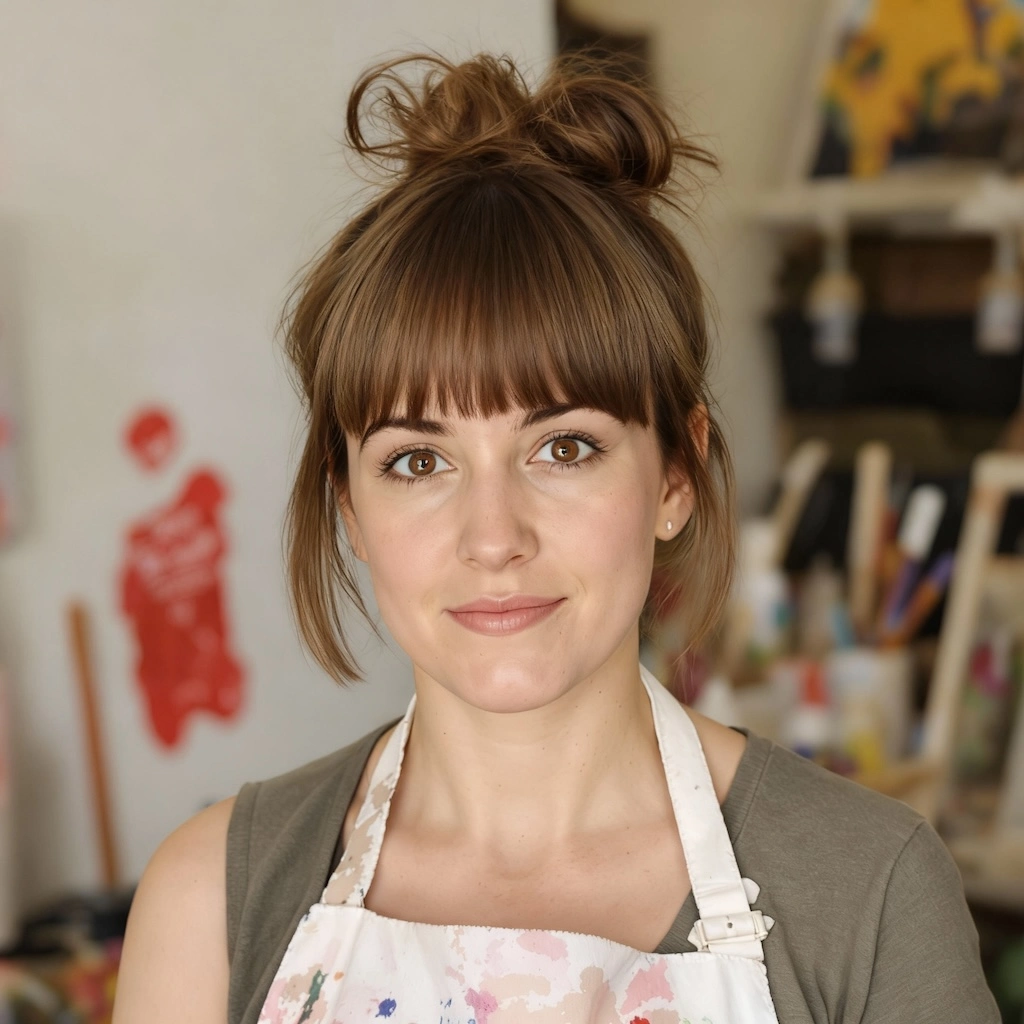
Original image example 2 - Before Image 2 AI transformation
AI-generated result example 2 - After Image 2 transformation
Before
After

Bangs Filter Examples

See how Bangs Filter works when you need to try bangs online, preview fringe hairstyles, and create salon reference photos.

01Transformations

Bangs Filter before and after

Start with a clear portrait with your hairline visible; the result shows realistic fringe placement, matched hair color, natural texture, and face-framing balance in a clear before-and-after comparison.

02Transformations

Best source for Bangs Filter

Best with a clear portrait with your hairline visible. Keep the main subject clear so GPT Image 2 can preserve recognizable detail while applying the Bangs Filter look.

03Transformations

Where to use Bangs Filter

Use it when you need to try bangs online, preview fringe hairstyles, and create salon reference photos. These examples show finished outputs, so users can judge the Bangs Filter look before uploading.

Bangs Filter FAQ

Common questions about using Bangs Filter

Still have questions? Contact us at [email protected]