Prompt
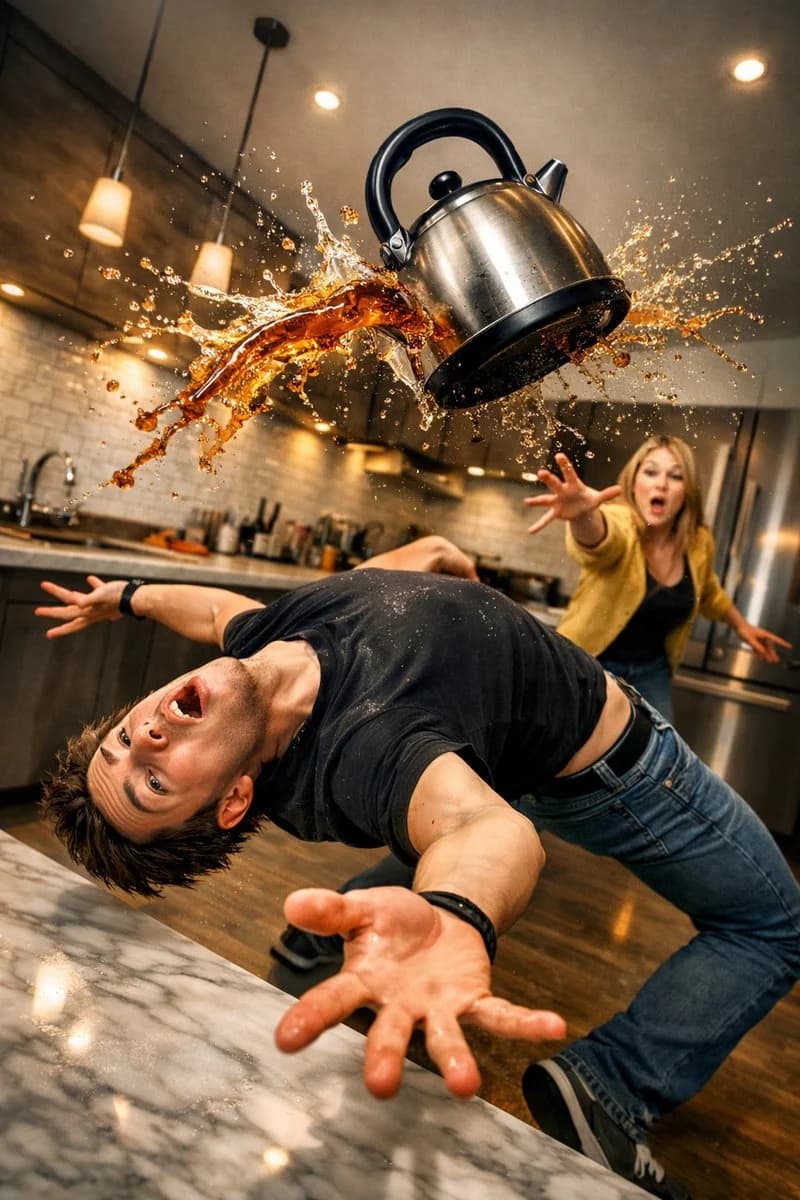
77 wordsSurreal comedic freeze-frame inside a modern kitchen: a young man arches backward in an extreme acrobatic dodge, body exaggerated, while a kettle hangs suspended mid-air above him, hot tea exploding outward in a dramatic splash. In the background a woman stands with one arm extended, looking completely shocked as if she just accidentally launched the kettle. Wide-angle lens distortion, crisp liquid physics, dynamic action freeze, sharp details, realistic lighting, cinematic color grading, humorous storytelling, high-resolution digital art.
About this prompt
Chaotic Kitchen Freeze-Frame is a ready-to-use comparison prompt for GPT Image 2 on Image 2. Copy the 77 words below, paste them into the Create form, and you will get a result close to the preview above. Tweak the Comparison tag if you want to push it somewhere new.
Use it as a starting point and keep iterating: change the subject, lighting, or composition until it looks right. The credit cost stays the same whether you run it as-is or remix it.
Use case
A strong starting point for Comparison
Start here when you want a comparison image in the same direction as Chaotic Kitchen Freeze-Frame. The prompt already sets the look and structure; swap in your own subject, product, colors, or scene details for the brief you have in mind.
Easy places to tweak
- Subject Swap in your person, product, place, or object without changing the overall composition.
- Look and mood Tune the lighting, palette, camera angle, or materials so the image fits your brand.
- Final format Set the aspect ratio, background, text, or layout notes before you generate.
More prompt paths to explore
Find more GPT Image 2 prompts with a similar style, use case, or subject.
How to use it
- Step 1
Copy the prompt
Hit the Copy button above to grab the full text.
- Step 2
Open Image 2 Create
Head to the Create form and paste it in.
- Step 3
Generate
Hit Generate. Your version lands in seconds.
Make it yours
Load the prompt into the Create form with one click, then start tweaking.