Prompt
160 wordsGPT Image 2 on ChatGPT
Prompt;
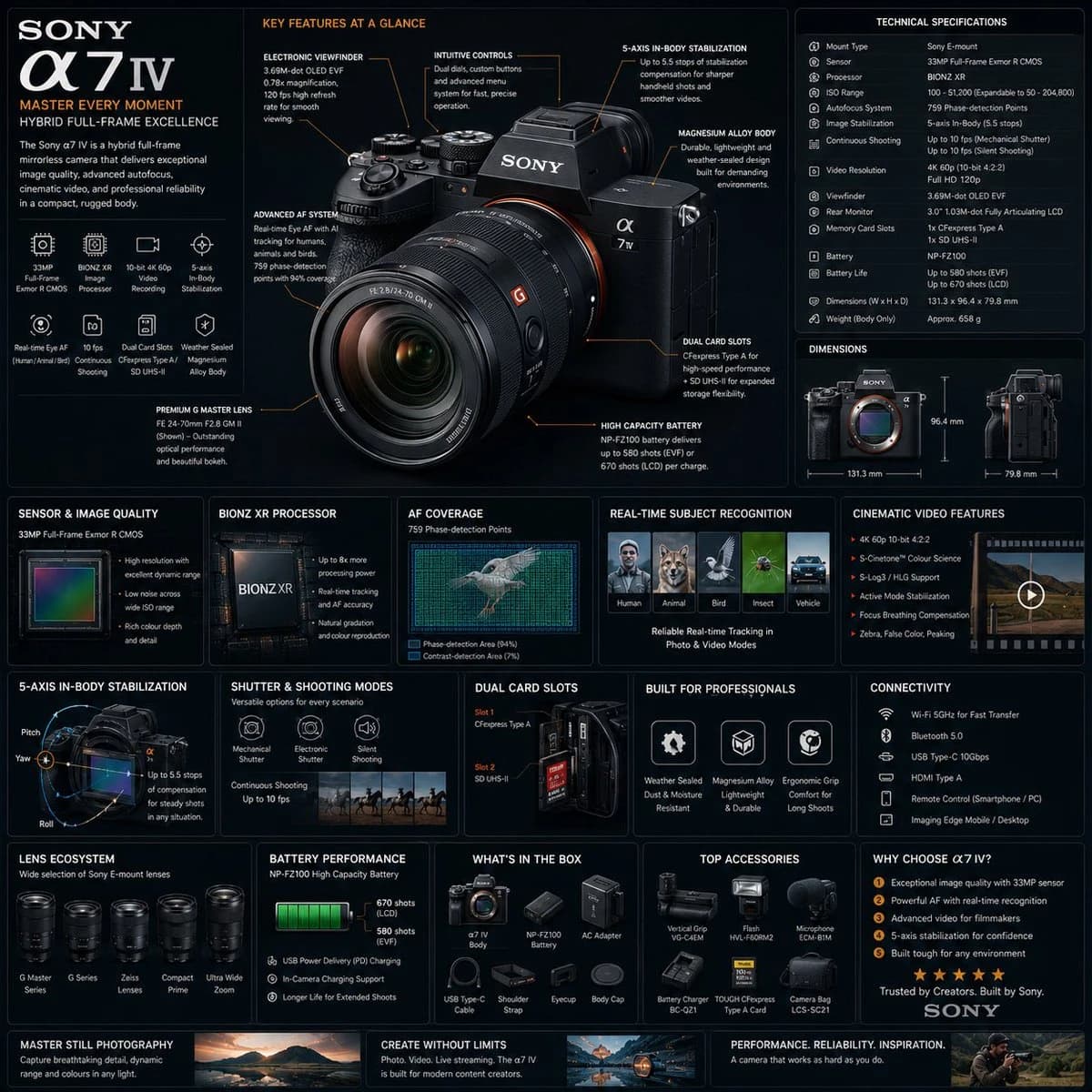
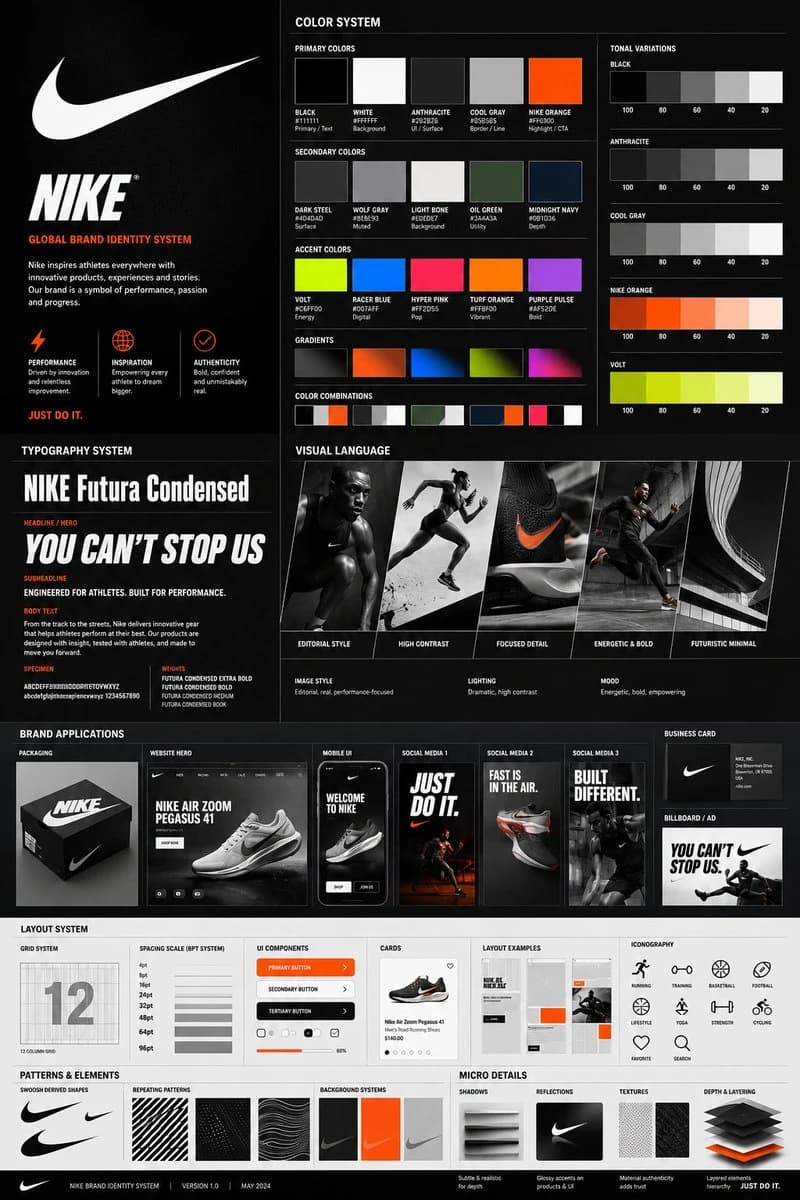
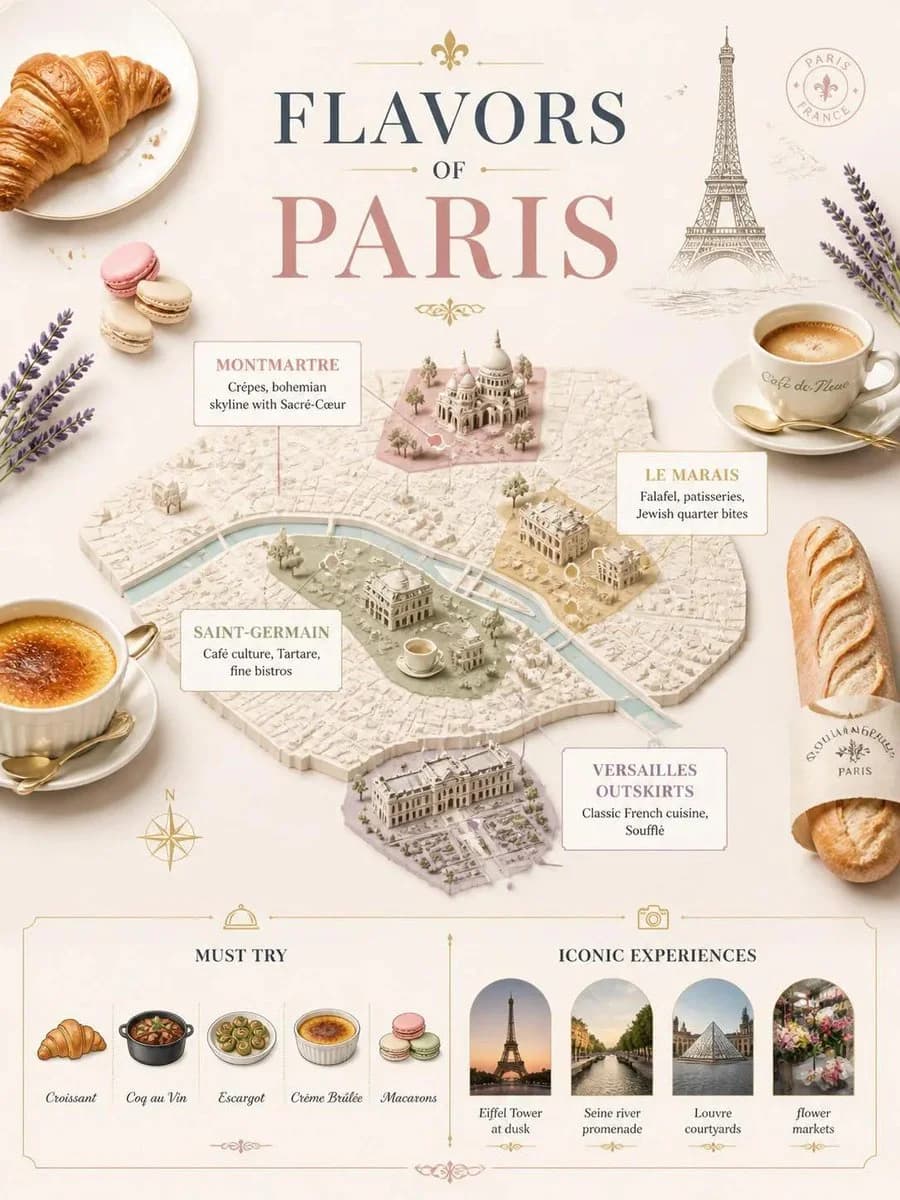
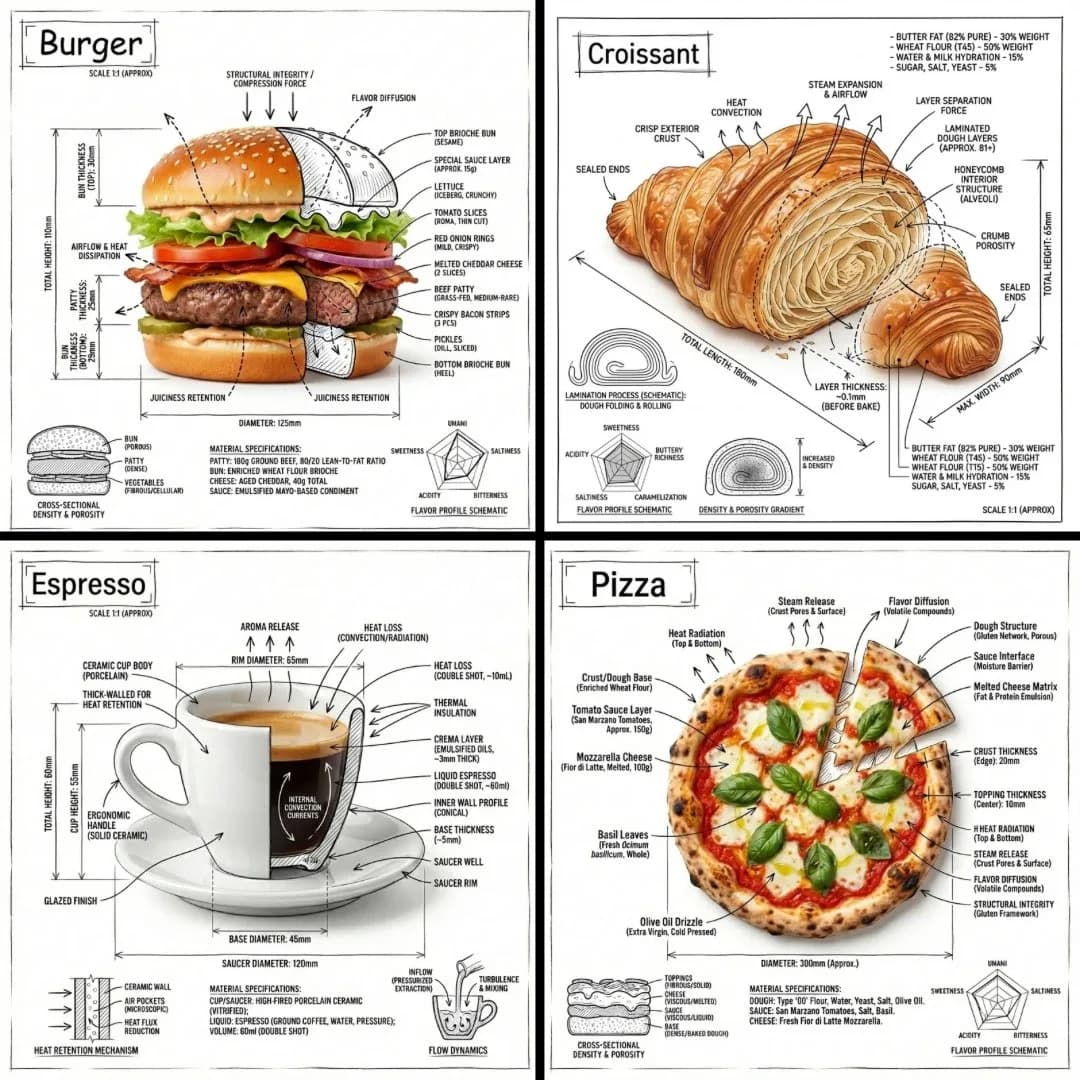
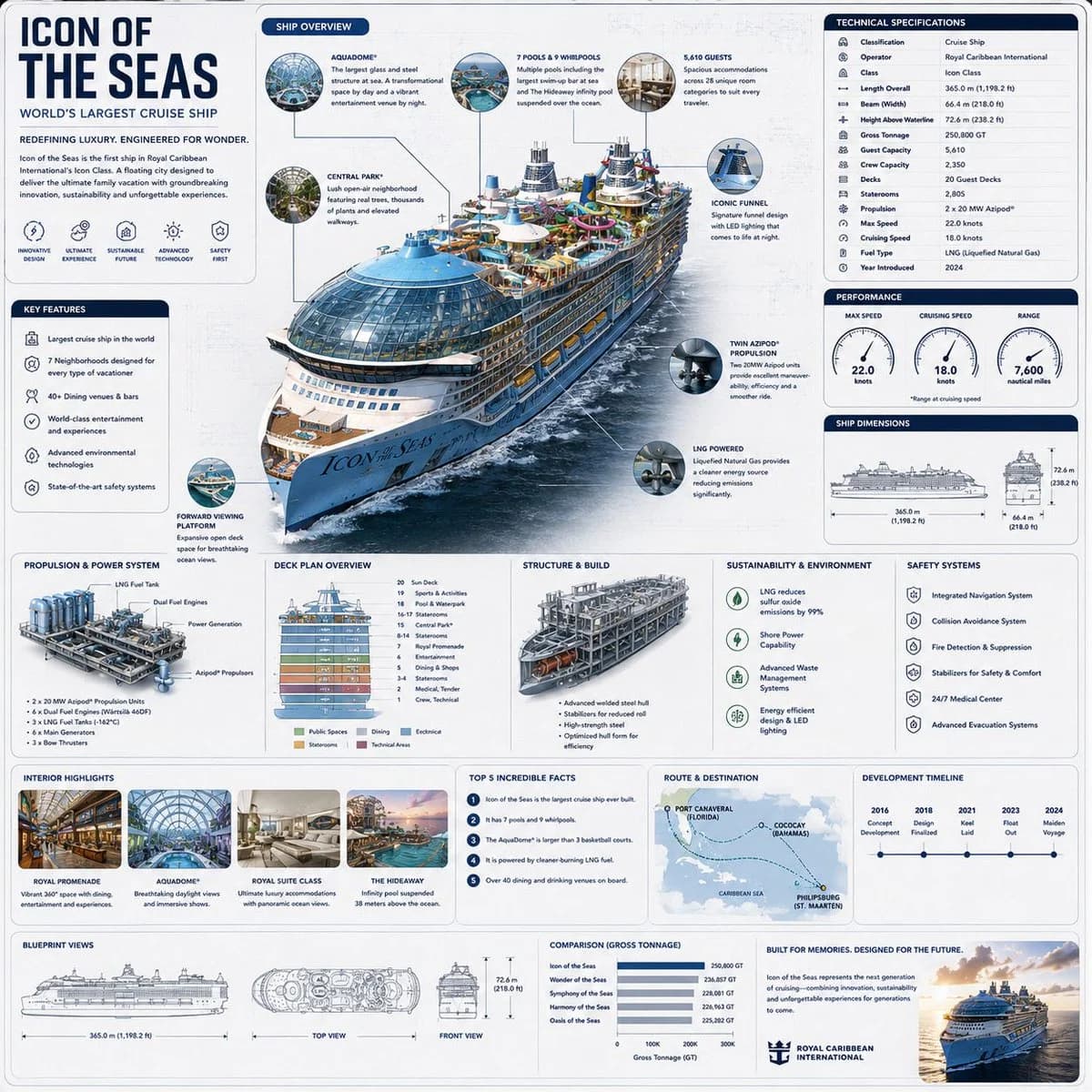
Create a premium square “reference-style transportation infographic” centered around {VEHICLE_NAME}, designed as a beautifully curated engineering handbook page rather than a commercial poster.
The composition should feel like a modern visual encyclopedia mixed with a high-end industrial design manual and elite editorial infographic system.
Visual Direction:
• 1:1 square composition
• Soft light-toned technical background with subtle blueprint textures and schematic overlays
• Elegant muted palette using graphite gray, titanium silver, deep navy, steel blue, and soft white accents
• Refined editorial typography hierarchy
• Rounded modular information cards with clean spacing
• Gentle realistic shadows and premium UI-style dividers
• Minimal technical iconography
• Extremely detailed central vehicle render viewed in dramatic three-quarter perspective
• Thin precision annotation lines pointing toward engineering systems and structural details
• Clean, organized “knowledge-first” layout with high information density but breathable spacing
Main Subject Presentation:
A stunning ultra-detailed realistic render of the {VEHICLE_NAME} placed at the cenAbout this prompt
Vehicle Reference Engineering Infographic is a ready-to-use ui mockup prompt for GPT Image 2 on Image 2. Copy the 160 words below, paste them into the Create form, and you will get a result close to the preview above. Tweak the Product Ad, Infographic, UI tag if you want to push it somewhere new.
Use it as a starting point and keep iterating: change the subject, lighting, or composition until it looks right. The credit cost stays the same whether you run it as-is or remix it.
Use case
A strong starting point for UI Mockup
Start here when you want a ui mockup image in the same direction as Vehicle Reference Engineering Infographic. The prompt already sets the look and structure; swap in your own subject, product, colors, or scene details for the brief you have in mind.
Easy places to tweak
- Subject Swap in your person, product, place, or object without changing the overall composition.
- Look and mood Tune the lighting, palette, camera angle, or materials so the image fits your brand.
- Final format Set the aspect ratio, background, text, or layout notes before you generate.
More prompt paths to explore
Find more GPT Image 2 prompts with a similar style, use case, or subject.
How to use it
- Step 1
Copy the prompt
Hit the Copy button above to grab the full text.
- Step 2
Open Image 2 Create
Head to the Create form and paste it in.
- Step 3
Generate
Hit Generate. Your version lands in seconds.
Make it yours
Load the prompt into the Create form with one click, then start tweaking.