Prompt
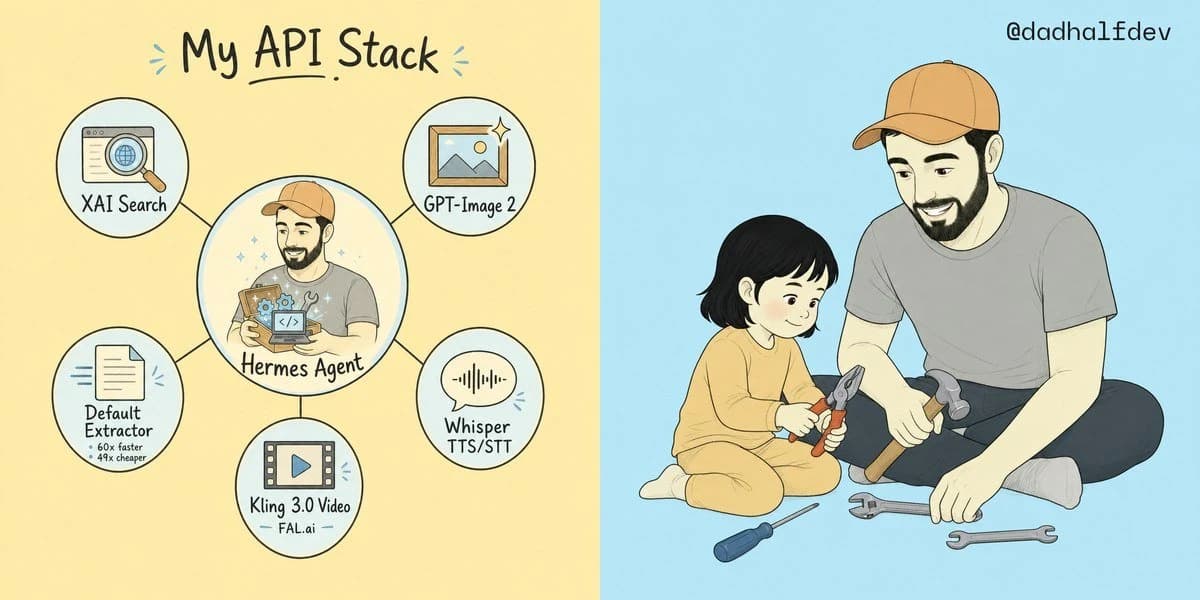
429 wordsGoal: Create a wide two-panel hand-drawn social media illustration explaining {argument name="headline text" default="My API Stack"} on the left and showing a warm parent-child repair scene on the right.
Canvas: Horizontal 2:1 aspect ratio, split exactly down the center into two equal halves. Left half has a pale warm yellow background; right half has a pale sky blue background. Use clean ink outlines, soft pastel fills, subtle paper texture, and a friendly indie webcomic style.
Left panel layout: At the top center, write the large handwritten headline “{argument name="headline text" default="My API Stack"}” in dark ink with a small underline under “API” and tiny blue accent marks on both sides. Below it, create a hub-and-spoke diagram with exactly 6 circular nodes connected by thin black lines: 1 large central circle and 5 smaller outer circles.
Left panel node details, exactly 6 total:
1. Center large node: an illustrated bearded man in a tan baseball cap and gray shirt holding a glowing box full of small gears and a code icon, labeled “{argument name="central agent label" default="Hermes Agent"}”. Add tiny sparkles around him.
2. Upper-left small node: browser window with a magnifying glass over a globe, labeled “XAI Search”.
3. Upper-right small node: framed landscape image icon with a sparkle, labeled “GPT-Image 2”.
4. Lower-right small node: speech bubble with audio waveform, labeled “Whisper TTS/STT”.
5. Bottom small node: filmstrip/video icon with a play button, labeled “Kling 3.0 Video” with small sublabel “FAL.ai”.
6. Lower-left small node: document/page icon with speed lines, labeled “Default Extractor” with tiny subtext “60x faster” and “49x cheaper”.
Right panel subject: Draw an adult bearded man wearing a tan baseball cap, gray T-shirt, dark pants, and light socks, sitting cross-legged and smiling down at a small child. The child has short black bobbed hair and wears a soft yellow long-sleeve outfit, sitting on the floor and holding red-handled pliers. The adult holds a hammer while another hammer rests near his leg. Add exactly 4 loose tools on the floor: 1 blue-handled screwdriver, 1 gray adjustable wrench, 1 gray open-ended wrench, and 1 extra hammer. The scene should feel gentle, instructional, and wholesome.
Text: In the top-right corner of the blue panel, add the handle “{argument name="social handle" default="@dadhalfdev"}” in small dark handwritten text.
Constraints: Keep the split background clean with no border line other than the color change. Maintain the same character design for the central Hermes Agent and the adult on the right: bearded, tan cap, gray shirt. Avoid photorealism, avoid 3D rendering, avoid extra nodes, avoid additional labels, and keep all text legible.About this prompt
My API Stack Two-Panel Illustration is a ready-to-use infographic prompt for GPT Image 2 on Image 2. Copy the 429 words below, paste them into the Create form, and you will get a result close to the preview above. Tweak the Social Media, Infographic, Product tag if you want to push it somewhere new.
Use it as a starting point and keep iterating: change the subject, lighting, or composition until it looks right. The credit cost stays the same whether you run it as-is or remix it.
Use case
A strong starting point for Infographic
Start here when you want a infographic image in the same direction as My API Stack Two-Panel Illustration. The prompt already sets the look and structure; swap in your own subject, product, colors, or scene details for the brief you have in mind.
Easy places to tweak
- Subject Swap in your person, product, place, or object without changing the overall composition.
- Look and mood Tune the lighting, palette, camera angle, or materials so the image fits your brand.
- Final format Set the aspect ratio, background, text, or layout notes before you generate.
More prompt paths to explore
Find more GPT Image 2 prompts with a similar style, use case, or subject.
How to use it
- Step 1
Copy the prompt
Hit the Copy button above to grab the full text.
- Step 2
Open Image 2 Create
Head to the Create form and paste it in.
- Step 3
Generate
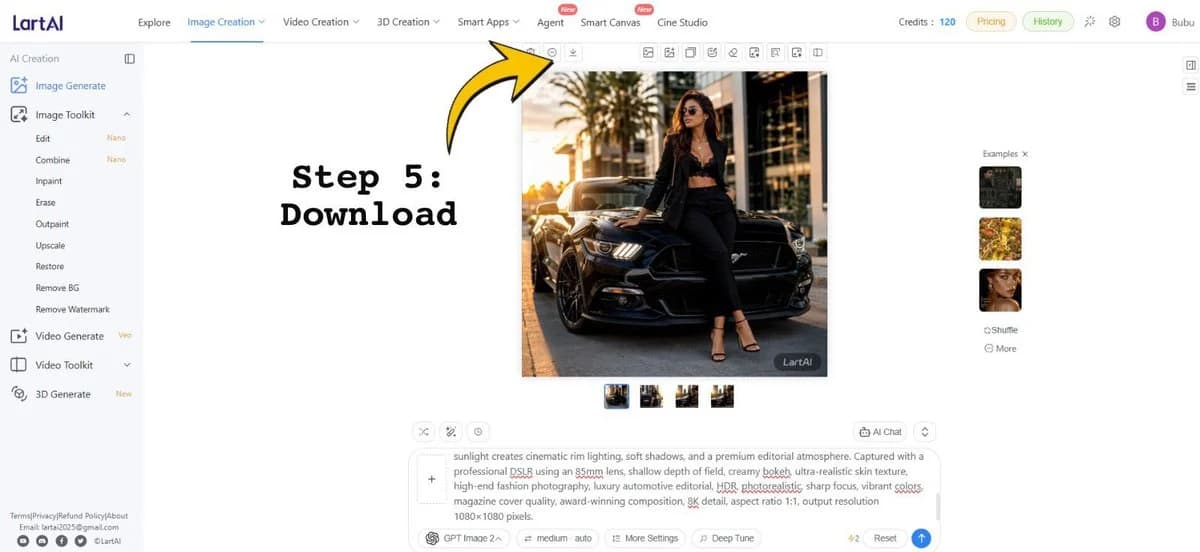
Hit Generate. Your version lands in seconds.
Make it yours
Load the prompt into the Create form with one click, then start tweaking.